
In Administration > Settings, in the Security tab, you can manage MyQ Roger’s security settings, and then use Save all in the upper-right corner to save your changes.
Password complexity
-
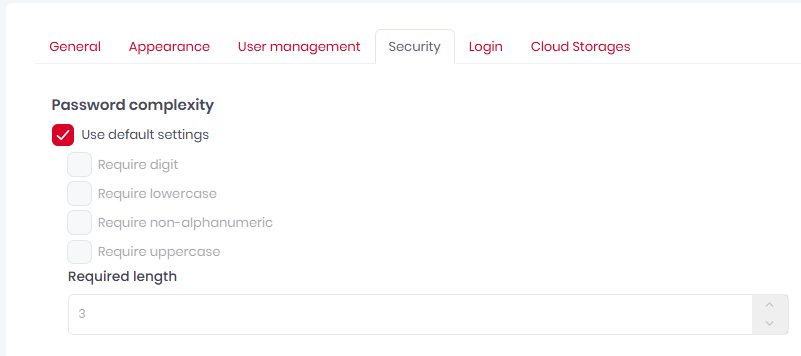
In the Password complexity section, specify the security options for the password:
-
Use default settings - Check the box to use the default security settings (all boxes checked, required length = 8).
-
Require digit - Check the box so that the password must contain digits.
-
Require lowercase - Check the box so that the password must contain lowercase values.
-
Require non-alphanumeric - Check the box so that the password must contain special characters (*,%,#, etc.).
-
Require uppercase - Check the box so that the password must contain uppercase values.
-
Required length - Specify the minimum password length.
-
PIN Settings
-
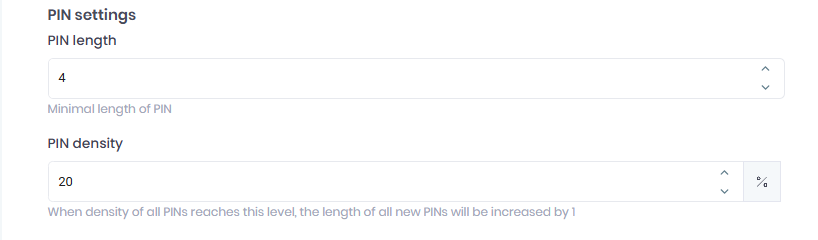
PIN length - Set a number for the minimal PIN length.
-
PIN density - Set the percentage for PIN density. When the density of all PINs reaches this level, the length of all new PINs will be increased by 1.
User Lock Out
-
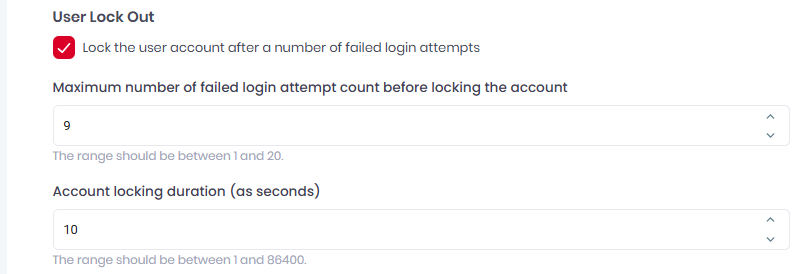
Lock the user account after a number of failed login attempts - Check the box to enable user account lockout. If enabled, the following settings become available.
-
Maximum number of failed login attempt count before locking the account - Specify the number of the failed login attempts before the account is locked.
-
Account locking duration (as seconds) - Specify the amount of time the account is locked for (in seconds).
Two Factor Login

-
The Two Factor Login section is visible only if the Host administrator (global admin for all tenants) has globally enabled two-factor authentication. For further details, check Two-Factor Authentication.
Cloud Storages

-
In the Cloud Storages section, mark the checkbox if you want to Allow users access cloud storage in device when weak PIN authentication is used.