
Device Spooling is a feature that saves your print jobs directly onto the device's hard drive.
This gives you the freedom to release your documents at any time, even if the computer you printed from is turned off, asleep, or disconnected from the network. It's the most reliable way to print from a PC, and because the job is stored locally, the release is instant.
IPP Configuration
-
Go to Windows Control Panel and open Devices and Printers.
-
Click Add a printer, and then click The printer that I want isn’t listed.
-
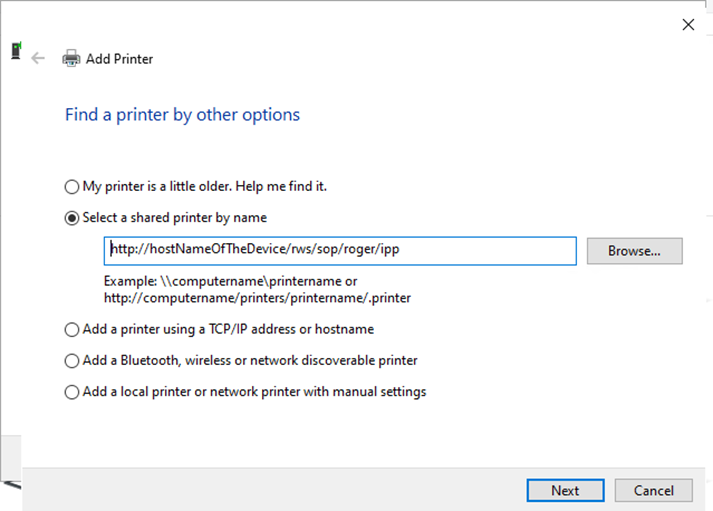
Choose Select a shared printer by name and enter the URL: http://hostNameOfTheDevice/rws/sop/roger/ipp.
-
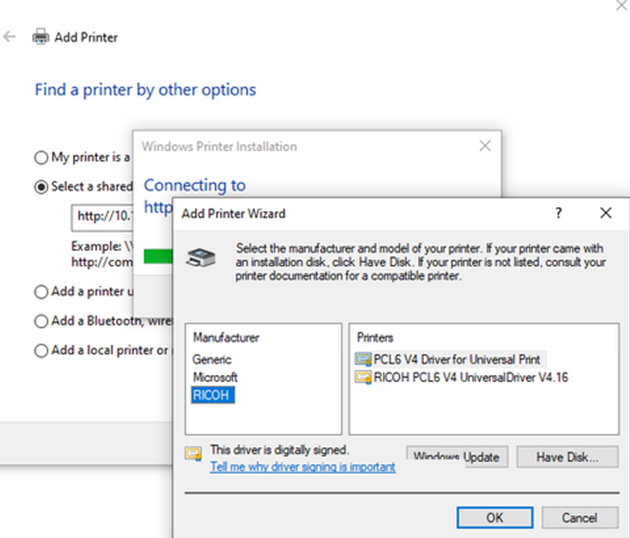
Specify the printer driver.
-
The printer is added and ready to use.
IPPS Configuration
-
Open the device web UI and log in as Administrator.
-
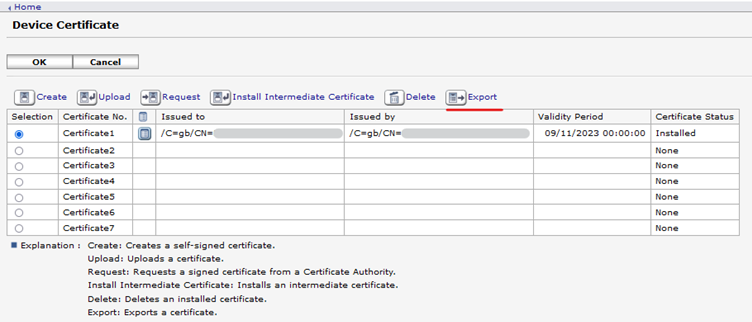
Go to Device Management > Configuration > Security: Device certificate.
-
Export the certificate.
-
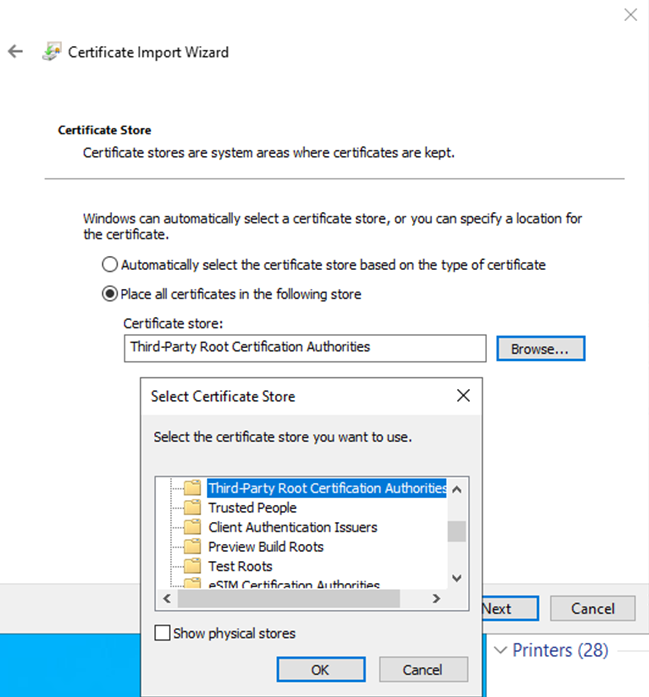
Install the downloaded certificate to Third-Party Root Certification Authorities.
-
Go to Windows Control Panel and open Devices and Printers.
-
Click Add a printer, and then click The printer that I want isn’t listed.
-
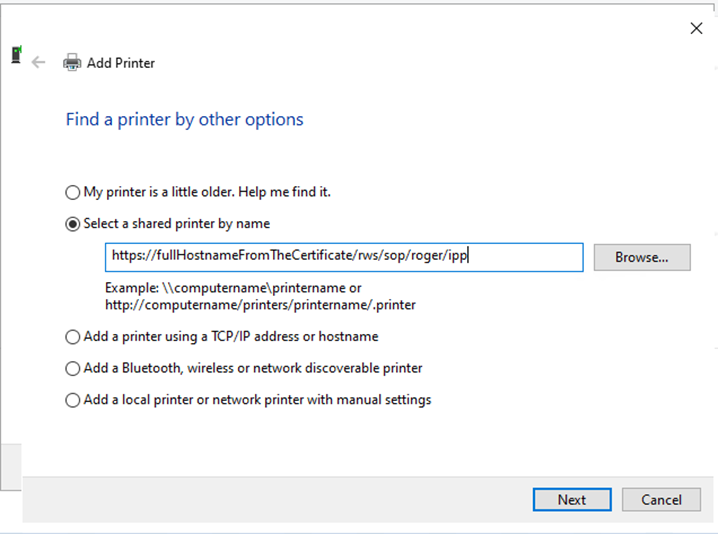
Choose Select a shared printer by name and enter the URL: https://fullHostnameFromTheCertificate/rws/sop/roger/ipp.
-
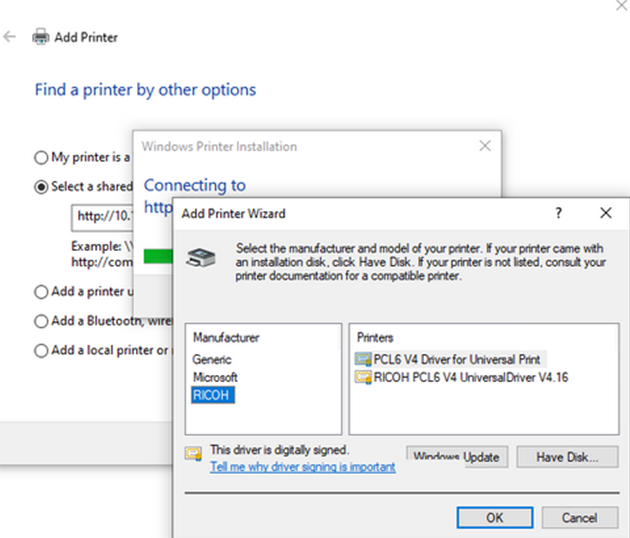
Specify the printer driver and click OK. The printer is added and ready to use.
Roger User Aliases
Once above configuration is set, the Device user name must be added to user aliases of the user which will be matched with RAW jobs.
-
Log in to MyQ Roger as an admin user (or user with permissions to modify tenant users).
-
Go to Users and click Actions > Edit on a user that needs to be matched.
-
Add Device user name to user aliases.