
The MyQ Roger Entra ID App integrates with Microsoft 365 services (Microsoft Graph and Universal Print) to enable secure printing, file handling, and communication features for users. It requires specific permissions to operate on behalf of users and, in some cases, as an application (background service) to perform printing and device management tasks.
Types of Permissions
Entra ID distinguishes between two types of permissions:
-
Delegated permissions – used when a signed-in user interacts with the app. The app acts on behalf of that user and only access data the user can access.
-
Application permissions – used by background services or daemons without user interaction.
These require admin consent.
Granted API Permissions
Microsoft Graph (User and File Access)
|
Permission |
Type |
Description |
Admin Consent Required |
Purpose |
|---|---|---|---|---|
|
User.Read |
Delegated |
Sign in and read user profile |
No |
Allows the app to identify the current user. |
|
openid, profile, email |
Delegated |
Standard OpenID Connect permissions |
No |
Enable secure sign-in and basic identity info (name, email). |
|
offline_access |
Delegated |
Maintain access to data you’ve granted |
No |
Allows background refresh of access tokens without re-login. |
|
Files.Read.Selected |
Delegated |
Read files that the user explicitly selects |
No |
Lets the app open individual files chosen by the user. |
|
Files.ReadWrite |
Delegated |
Full access to user’s files |
No |
Allows reading and modifying files in OneDrive or SharePoint. |
|
Files.ReadWrite.AppFolder |
Delegated |
Access to app-specific storage |
No |
Used for storing app configuration or temporary files. |
|
Files.ReadWrite.All |
Delegated |
Full access to all files user can access |
No |
Required for advanced integration with user file storage. |
|
Sites.ReadWrite.All |
Delegated |
Edit or delete items in all site collections |
No |
Needed for working with SharePoint document libraries. |
|
Mail.ReadWrite |
Delegated |
Read and write access to user mail |
No |
Used for email notifications and tracking user messages. |
|
Mail.Send |
Delegated |
Send mail as user |
No |
Allows the app to send notifications on behalf of the user. |
Microsoft Graph (Printing and Device Management)
|
Permission |
Type |
Description |
Admin Consent Required |
Purpose |
|---|---|---|---|---|
|
Printer.Create |
Delegated |
Register printers |
Yes |
Enables adding new printers to the organization. |
|
Printer.Read.All |
Delegated / Application |
Read printer information |
Yes |
Lets the app view printer configuration. |
|
Printer.ReadWrite.All |
Delegated / Application |
Read and update printer settings |
Yes |
Allows configuration changes and updates. |
|
Printer.FullControl.All |
Delegated |
Full management of printers |
Yes |
Required for advanced administrative operations. |
|
PrinterShare.ReadWrite.All |
Delegated |
Read and modify printer shares |
Yes |
Enables management of shared printers. |
|
PrintJob.Read.All, PrintJob.ReadBasic.All |
Application |
Read print job details |
Yes |
Required to monitor and report job status. |
|
PrintJob.ReadWrite.All, PrintJob.ReadWriteBasic.All |
Application |
Manage print jobs |
Yes |
Allows managing print jobs in the queue. |
|
PrintJob.Manage.All |
Application |
Advanced print job operations |
Yes |
Enables deleting, rerouting, or updating print jobs. |
|
PrintSettings.Read.All |
Application |
Read tenant-wide print settings |
Yes |
Needed for reading central print policies. |
|
PrintTaskDefinition.ReadWrite.All |
Application |
Manage print task definitions |
Yes |
Used to define and handle print processing logic. |
Universal Print Permissions
|
Permission |
Type |
Description |
Admin Consent Required |
Purpose |
|---|---|---|---|---|
|
Printers.Create |
Delegated |
Create (register) new printers |
Yes |
Allows printer registration in Universal Print. |
|
Printers.Read |
Application |
Read printer metadata |
Yes |
Retrieve printer details across the tenant. |
|
PrinterProperties.ReadWrite |
Application |
Read/write printer properties |
Yes |
Update printer configuration (e.g., defaults). |
|
PrintJob.Read |
Application |
Read print job metadata and payload |
Yes |
Access job data for tracking or auditing. |
|
PrintJob.ReadWriteBasic |
Application |
Read and write job metadata |
Yes |
Manage print job state and basic info. |
Consent and Administration
-
Permissions marked Yes under Admin Consent Required must be approved by a Global Administrator or Privileged Role Administrator.
-
Once consented, all users in the tenant can use the app without further prompts.
-
Consent is granted for the organization: Example Organization Ltd. indicates that consent was granted for this publisher by your organization.
Granting Administrator Consent
Many of the API permissions used by MyQ Roger require administrator consent - this includes all Application permissions and several Delegated permissions (for example, the Printer and PrintJob permissions). Administrator consent must be granted by a Global Administrator (or Privileged Role Administrator) on behalf of the entire organization. Granting consent for the whole organization prevents your users from being prompted for consent when they sign in to MyQ Roger.
Why do my users still see consent prompts?
Once the MyQ Roger Entra ID app is approved, the user experience depends on the role of the person who performed the approval:
-
Global Administrator: Microsoft Entra ID offers the option to Grant admin consent for your organization. Selecting it grants the permissions for all users at once, and no further per-user prompts appear.
-
Not a Global Administrator: the outcome depends on your tenant's user-consent settings. Either the request is forwarded to a Global Administrator for approval (an admin consent request), or the request is silently ignored (the administrator is not notified, and the user cannot complete sign-in).
If the Grant admin consent for your organization option was not selected by a Global Administrator during setup, your users will continue to receive administrator-consent prompts.
Granting Administrator Consent after Setup
If organization-wide consent was not granted during the initial approval flow, a Global Administrator can grant it at any time:
-
Sign in to the Azure portal as a Global Administrator.
-
Go to Microsoft Entra ID > Enterprise applications > MyQ Roger.
-
Select Security > Permissions.
-
Select Grant admin consent for your organization and confirm.
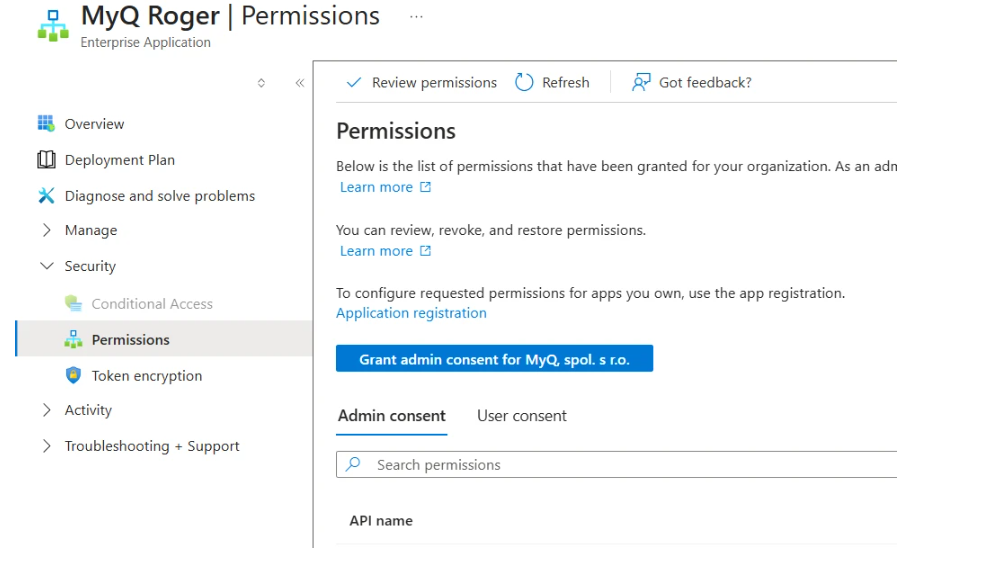
Once consent has been granted for the organization, your users will no longer be prompted for administrator consent.
Do not use the low-risk classification as a workaround.
Do not attempt to stop the consent prompts by classifying the MyQ Roger permissions as low-risk in the Microsoft Entra ID permission-classification/user-consent settings. Although this can prevent users from receiving prompts, it is not a recommended approach. A low-risk classification delegates the decision to allow or deny a permission to the individual user, when this decision should be made by an administrator. The correct and secure solution is for a Global Administrator to grant administrator consent on behalf of the organization, as described above.
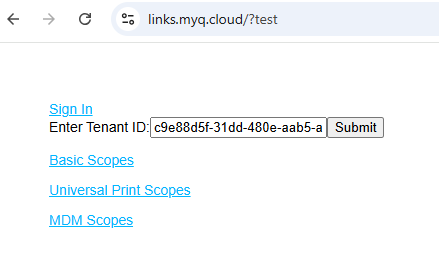
Quickly Grant or Reapply Consents for Administrators – links.myq.cloud
Microsoft organization administrators can grant or reapply the required consent permissions for the MyQ Roger application using a temporary quick-access page at links.myq.cloud. It outlines how to retrieve the Entra ID Tenant, choose the appropriate consent link (Basic, Universal Print, or MDM scopes), and approve the permissions for successful integration.
Security Notes
-
The app adheres to the Microsoft Graph API permission model and requests only the scopes needed for core functionality (printing, file access, email notifications).
-
Administrators can review granted consents at any time under Azure Portal > Microsoft Entra ID > Enterprise Applications > MyQ Roger > Permissions.