
The MyQ Roger Mobile App enables touchless login at printers, mobile scanning with OCR, and remote job release.
Download and Install
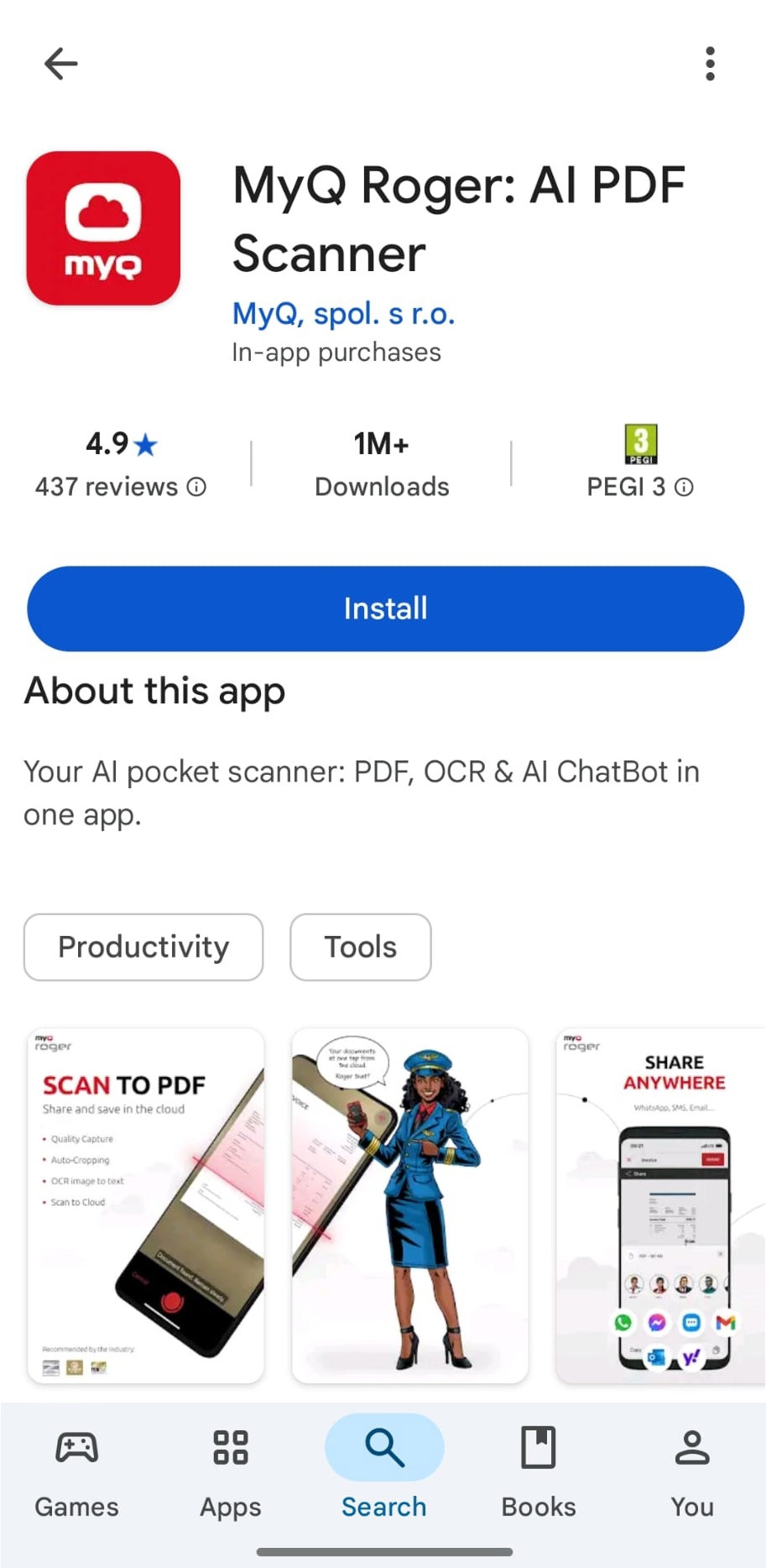
Download the free MyQ Roger app:
-
iOS: App Store
-
Android: Google Play
Sign In with Your Work Account
-
Open the MyQ Roger app and tap BUSINESS.
-
Select your Region (EU or US).
-
Enter your Tenancy name.
-
Choose one of the available sign in options:
-
MyQ
-
Apple (iOS only)
-
Google
-
Microsoft
-
Mobile App Overview
Once signed in, the app displays these main sections:
|
Tab |
Description |
|---|---|
|
Home |
Overview of ready print jobs, today's documents, and favorite workflows. |
|
Documents |
Lists your ready jobs and cloud storage files (OneDrive, Google Drive, Dropbox, Box). |
|
Login (center button) |
Scan a QR code or use NFC/Bluetooth to log in at a printer. |
|
Workflows |
Access preset and custom scan/print actions. |
|
More |
Profile settings, personal reports, help, and logout. |
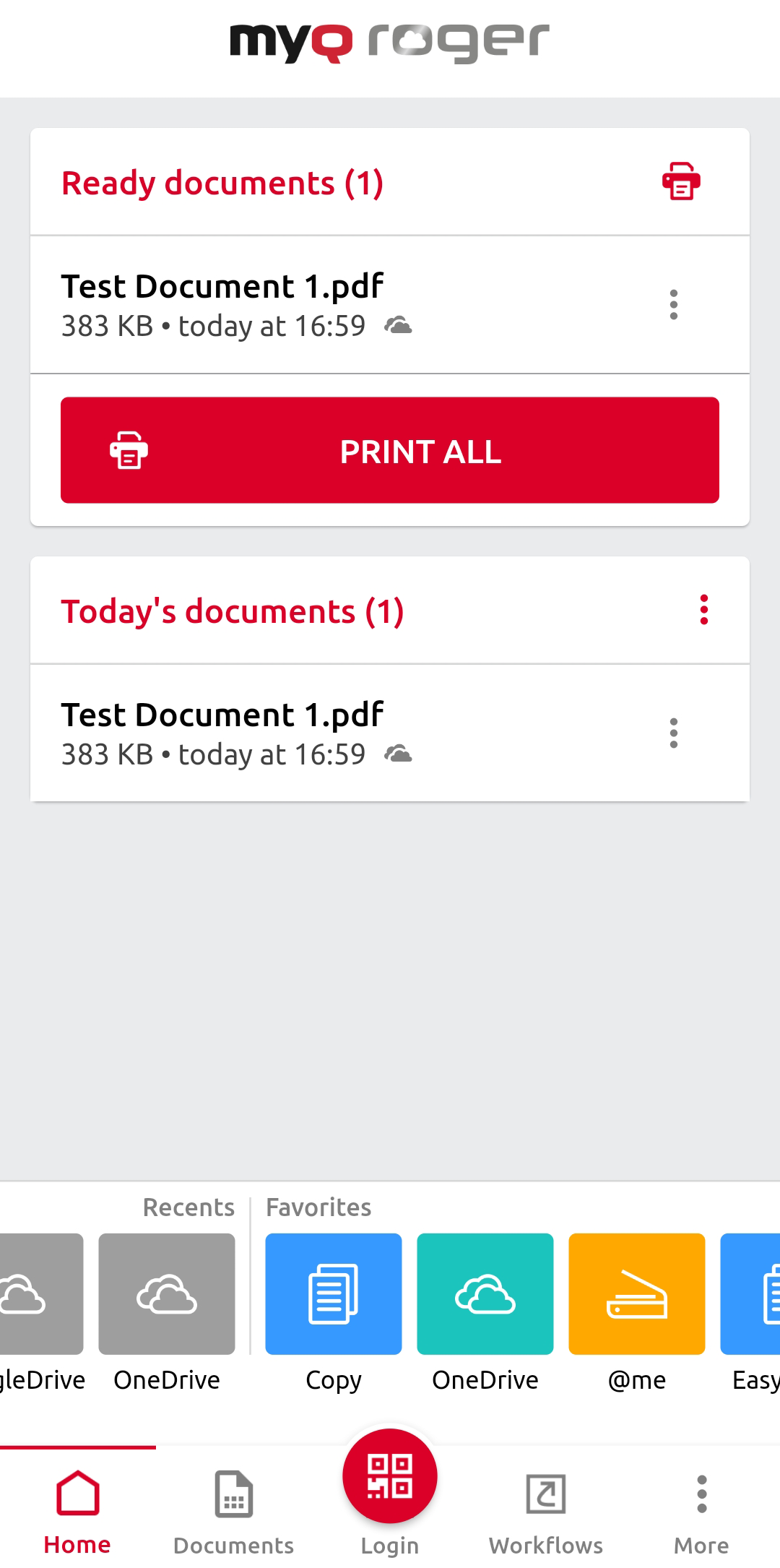
To log in at a printer, tap the Login button on the app and then scan the QR code displayed on the MFD panel.
