
Device Spooling is a feature that saves your print jobs directly onto the device's hard drive.
This gives you the freedom to release your documents at any time, even if the computer you printed from is turned off, asleep, or disconnected from the network. It's the most reliable way to print from a PC, and because the job is stored locally, the release is instant.
All jobs are securely stored on the device’s hard drive, allowing printing to continue even when the PC is offline. This method ensures that once a document is sent, it stays on the device’s internal storage, enabling on-demand printing without needing a constant connection to the computer.
Windows Setup
Adding Printer using Standard Windows Dialogs
-
Add a new device manually.
-
Select a shared printer by name - http://<printer.ip|hosname>:8080/myq/ipp (e.g. http://10.14.4.249:8080/myq/ipp).
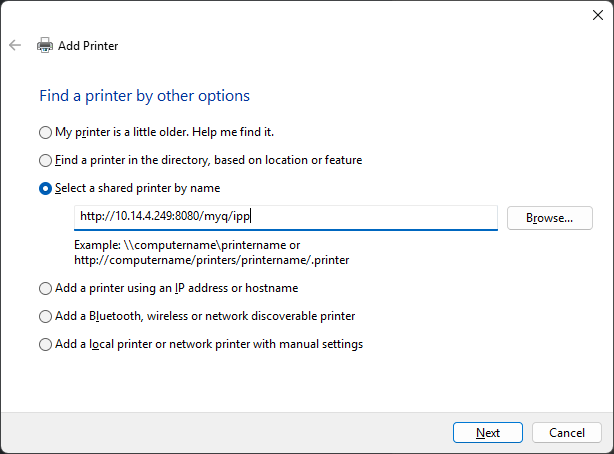
-
Select your preferred driver.
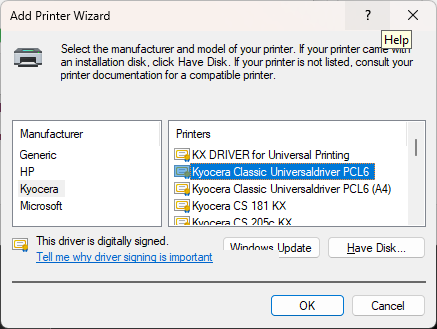
IPPS
SSL - Windows needs trusted certificate for SSL to work.
This can be resolved by adding device certificate into Third Party Root certificates in windows certificate store and then adding a printer using its hostname.
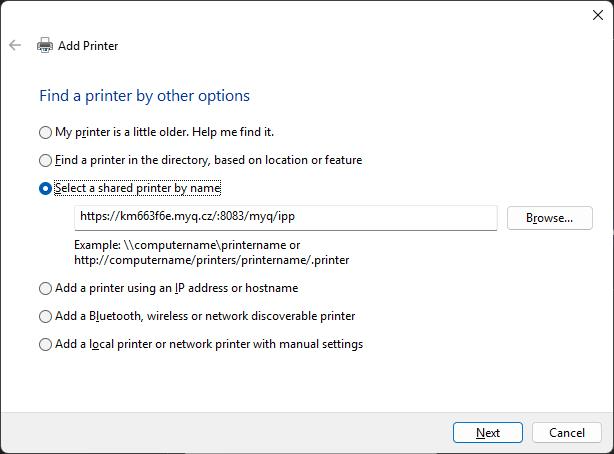
The port for SSL is 8083 so the service is at e.g. https://km663f6e.myq.cz:8083/myq/ipp.
Roger User Aliases
Once above configuration is set, the Device user name must be added to user aliases of the user which will be matched with RAW jobs.
-
Log in to MyQ Roger as an admin user (or user with permissions to modify tenant users).
-
Go to Users and click Actions > Edit on a user that needs to be matched.
-
Add Device user name to user aliases.