
The MyQ Roger app can be installed on Kyocera Multi-Function Devices (MFDs) as a standard application. It is done via KYOCERA Net Viewer or uploading the installation file from a USB flash drive and installing the application on the device’s system menu.
Installation Using KYOCERA Net Viewer
Connect printer by IP and load the Roger app onto the Terminal
-
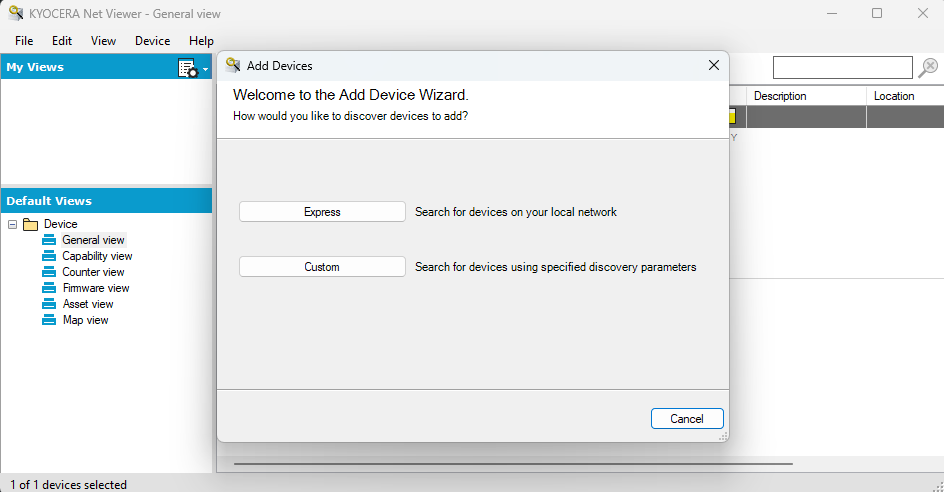
Open Kyocera NET Viewer and select Add Device.
-
Choose how to discover a device. Express allows you to search for devices on your local network, Custom allows you to search using an IP address or range.
-
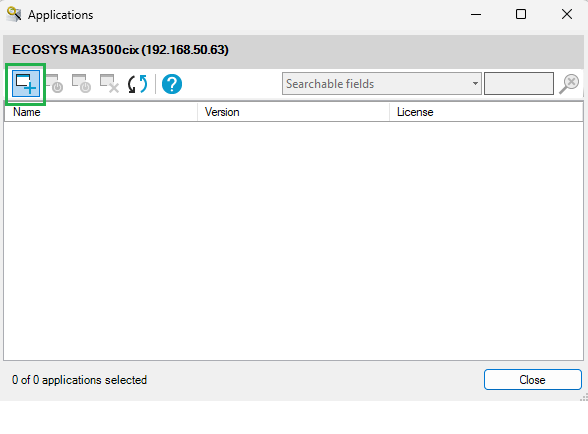
Once you have discovered the relevant device, right click it and select Edit > Applications.
-
In the Device menu, click Install New and select the Roger app file from the file browser. You will be asked to confirm the installation.
-
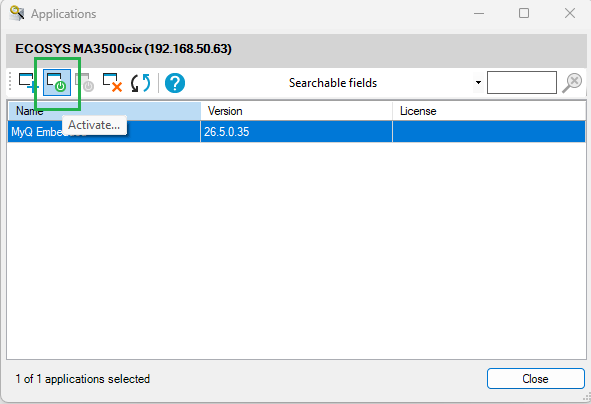
Select the newly installed app and select Activate. Choose the option Activate without a license key.
Saving Installation File to USB
Save the installation file to the root directory of a USB Flash drive.
Installing on the MFD
-
On the device operation panel, press the System Menu button (or System Menu/Counter button on some devices).
The System Menu opens. -
On the System Menu, find and tap Application (Favorites/Application on some devices).
You are prompted to log in as an administrator. -
Log in as the administrator.
The Application menu (or Favorites/Application menu) opens.
If there is a card reader connected to the device and activated, you are asked to use your ID card. -
In such cases, tap Menu at the bottom-left corner of the screen, and then tap keyboard login.
-
If the Menu button is not displayed, press the System Menu button (or System Menu/Counter) on the device operation panel; the terminal screen refreshes with the button displayed.
-
In case you are asked to select between the Local login and the Network login, select Local before entering the credentials.
-
On the Application menu (or Favorites/Application menu), tap Application.
The Application sub-menu opens. -
Insert the USB Flash drive with the uploaded installation file, and then tap the plus sign (+) (or Add on some devices) at the upper-right corner of the screen.
A dialog box appears, informing about the number of applications that can be installed. -
Tap OK.
The Add-Application menu opens with the MyQ Roger item displayed. -
Select the MyQ Roger item, tap Install at the bottom-left corner of the screen, and then tap Yes to confirm the installation.
The Completed message appears and the Add - Application menu is empty. -
Back on the Add - Application menu, tap End.