
When you contact MyQ Support to investigate any issues with MyQ Roger, you should specify:
-
Your MyQ Roger Tenant name. The Tenant's name can be found:
-
In the MyQ Roger mobile app, go to More>Profile>Tenant name.
-
In MyQ Roger Client (MRC), it's visible in the top center.
-
In the terminal, tap the MyQ Roger logo on the login screen.
-
-
The username (email) where the issue occurred.
-
The exact time of the issue.
-
A detailed description of the issue.
-
Logs of any MyQ Roger products you currently use.
MyQ Roger HP Terminal Logs
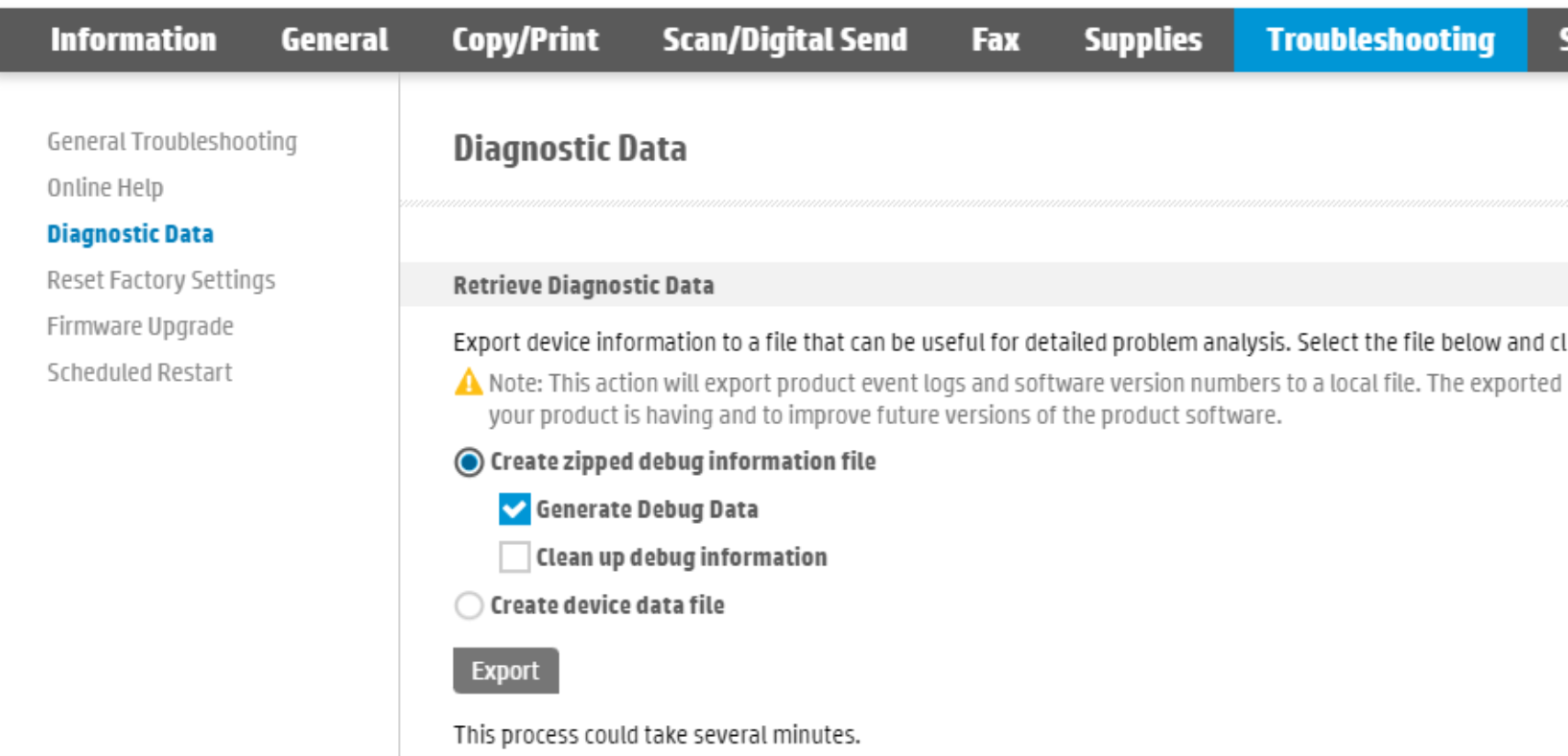
To obtain logs from an HP device, go to the device’s Web UI, in Troubleshooting>Diagnostic Data.
-
Select Create zipped debug information file and Generate Debug Data and click Export.
The process may take several minutes and when it’s finished, you can select where to save the exported file. -
Once this is done, select Create device data file and click Export.
-
Then select where to save the exported file.
Another way to obtain logs from an HP device is to download them from the HP Command Center. Check HP’s guide for instructions. If you don’t have access to the HP Command Center, contact your HP partner.
Whichever way you obtain them, attach the exported logs files to your helpdesk case.
Roger Web UI
-
Login to the Roger Web UI as a user with an admin role (permission Printers / Manage printers is required).
-
Open Printers and find the printer you wish to download the logs from.
-
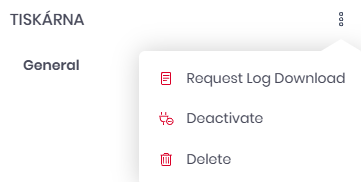
Open its details and in the three-dot menu select Request Log Download.
-
When the log download is finished, the file itself is stored on the Roger server.
-
Download it in the same three-dot menu by selecting Download Log.
-
-
The file is encrypted and cannot be opened directly. Please provide it to MyQ Support with your ticket.
MyQ Roger Client logs
The default location of the MyQ Roger Client logs is in the following two directories:
-
C:\ProgramData\MyQ\Desktop Client\logs -
%userprofile%\AppData\Local\MyQ\Desktop Client\logs
Store all the files and folders from both directories in a .zip file and attach it to your helpdesk case.