
After installing MyQ Roger on your HP devices through HP Command Center, you can use the Configure option to remotely pair devices with your MyQ Roger tenant. Use this option to register multiple devices without needing to configure each one individually at the panel.
Remote configuration can only be applied to devices that already have MyQ Roger installed through HP Command Center. You must complete the installation before using the Configure option.
Prerequisites
-
MyQ Roger is installed on the target devices via HP Command Center.
-
You have an HP Command Center account with access to the relevant device pool/account.
-
You have a MyQ Roger tenant set up and know the tenant name.
-
Your MyQ Roger user role has the Pair Provider with Printer permission.
More Information
Accessing the Configuration Wizard
-
Log in to HP Command Center.
-
Go to the Accounts tab and select your account.
-
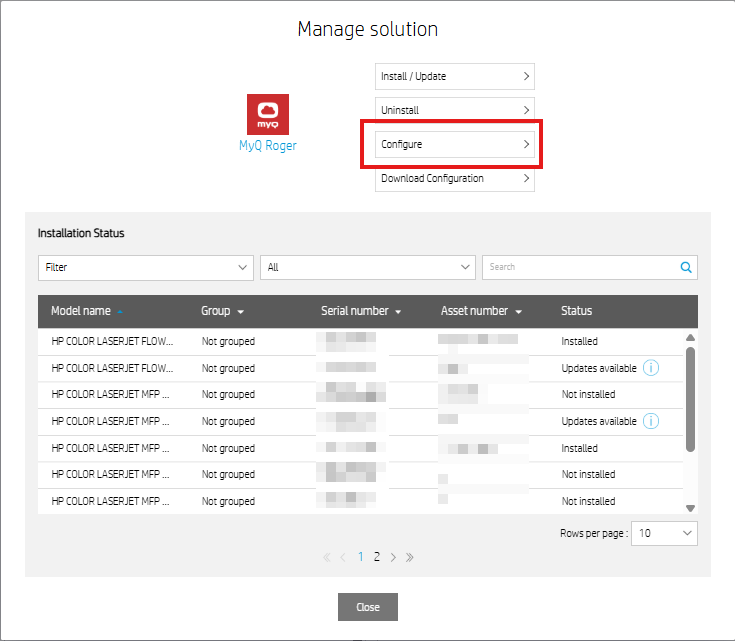
In the Solutions panel, locate MyQ Roger and click Manage.
-
In the Manage solution pop-up, click Configure.
The configuration wizard opens.
Setting the Configuration
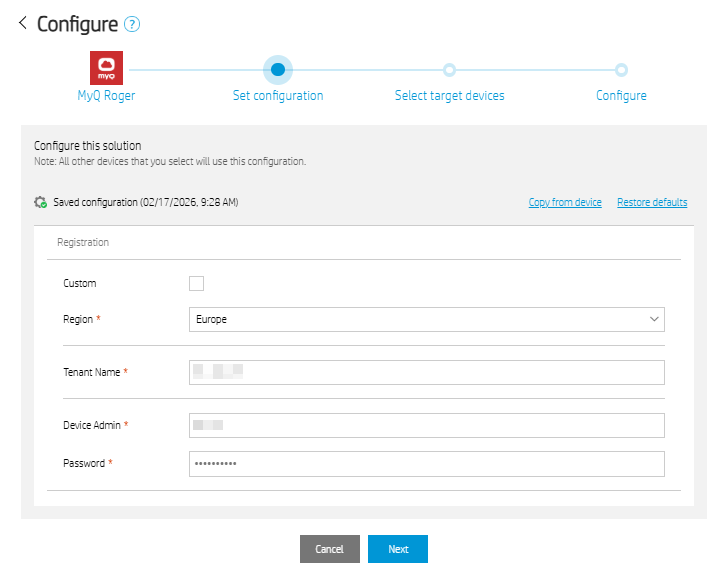
In the Set configuration step, enter the values to connect your devices with your MyQ Roger tenant, and click Next.
-
Custom (Optional)
Leave unselected for standard production environments. When selected, this option allows you to specify a custom region string (used for non-standard environments). -
Region
Select the region that matches your MyQ Roger deployment. -
Tenant Name
Enter the name of your MyQ Roger tenant. -
Device Admin
Enter the username of a MyQ Roger user account. -
Password
Enter the password for the Device Admin account.
Important!
The role of the Device Admin user must include the Pair Provider with Printer permission. You can verify or assign this permission in the MyQ Roger Server under Organization > Roles. If the credentials are incorrect or the user does not have this permission, device registration will fail.
Selecting Target Devices
-
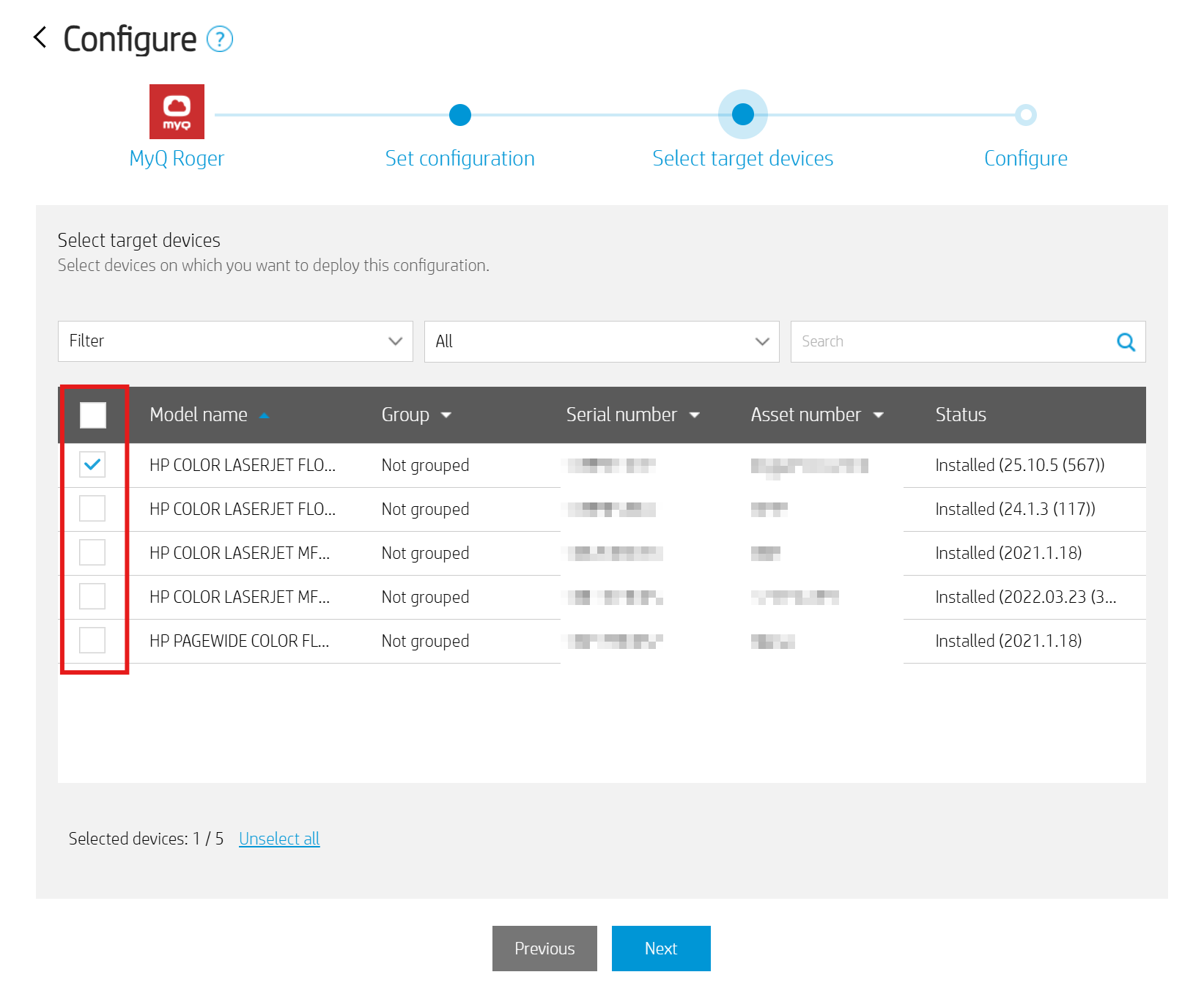
Select the devices that you want to apply the configuration to.
-
Click Next to proceed.
Applying the Configuration
-
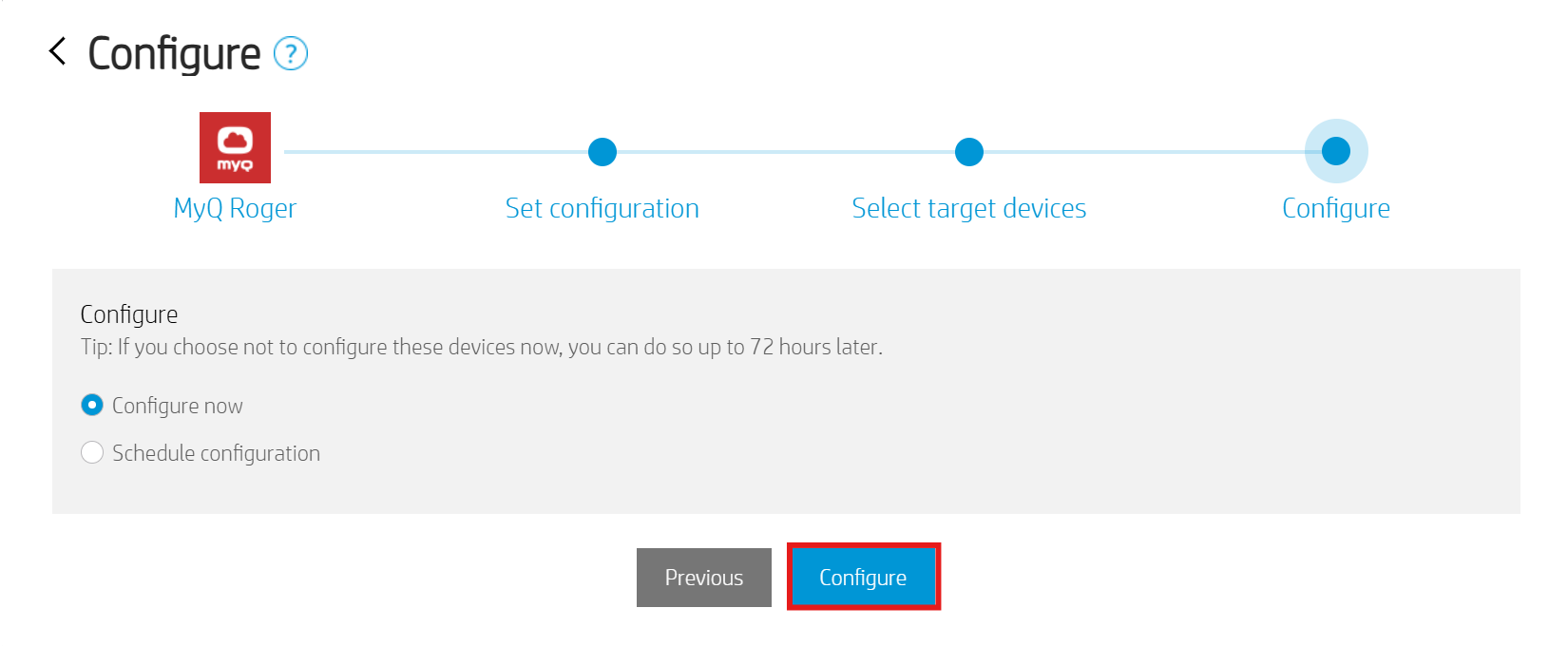
Select Configure now or optionally, schedule the configuration update to run later.
-
Click Configure.
HP Command Center creates a configuration task. You can monitor its progress in the Task history section of your account page. Once the configuration task succeeds, the target devices will automatically attempt to register with your MyQ Roger tenant in the background.
After the task completes, you can verify that the devices appear in your MyQ Roger tenant under Supervision > Printers.
Updating an Existing Configuration
You can re-run the configuration workflow at any time to change the registration details for your devices. The new configuration will overwrite the previous one on the selected devices.
When you open the Configure wizard, it displays the Saved configuration with the date it was last applied. You can also use the Copy from device or Restore defaults links to reset values.