MyQ Roger Installation on an HP Multi-Function Device (MFD)
-
Log in to http://hpcommandcenter.com and go to the Solutions tab.
-
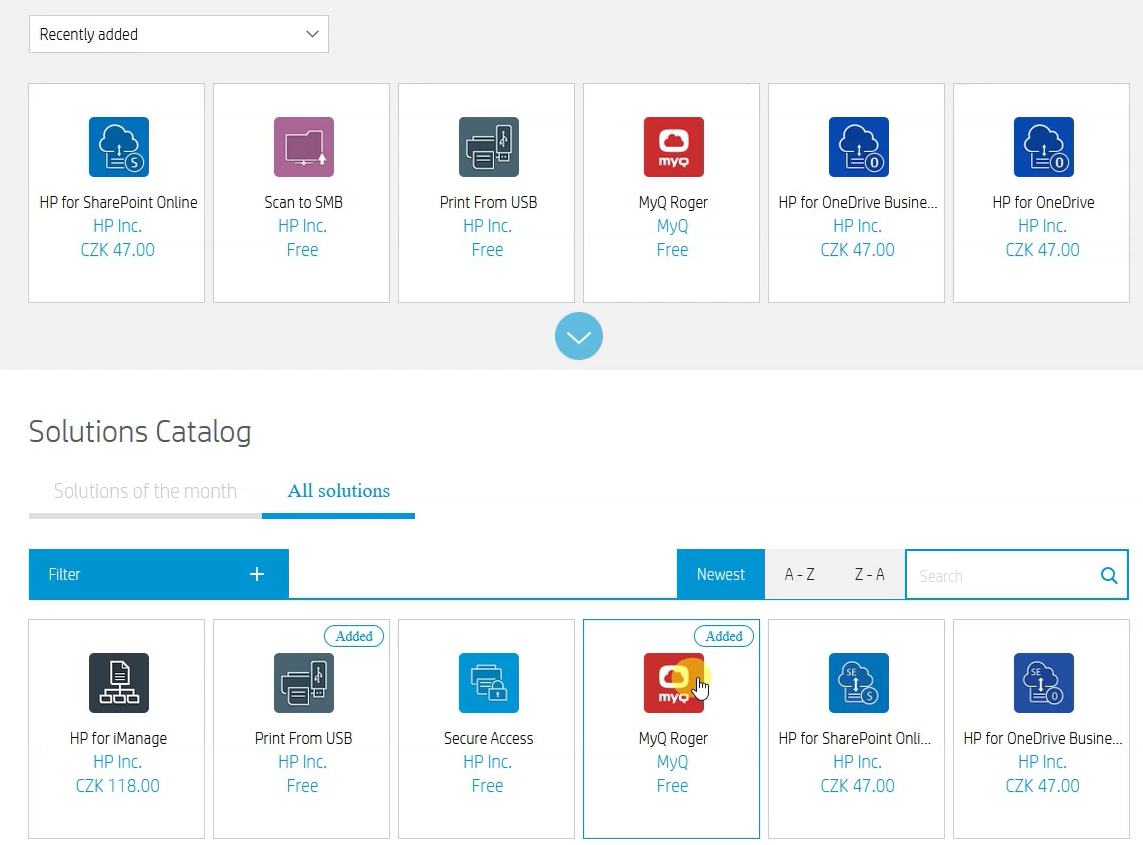
Click All Solutions and search for MyQ Roger in the search bar.
-
Select the MyQ Roger app and add it to your solutions portfolio.
-
Go to the Accounts tab and select your account.
-
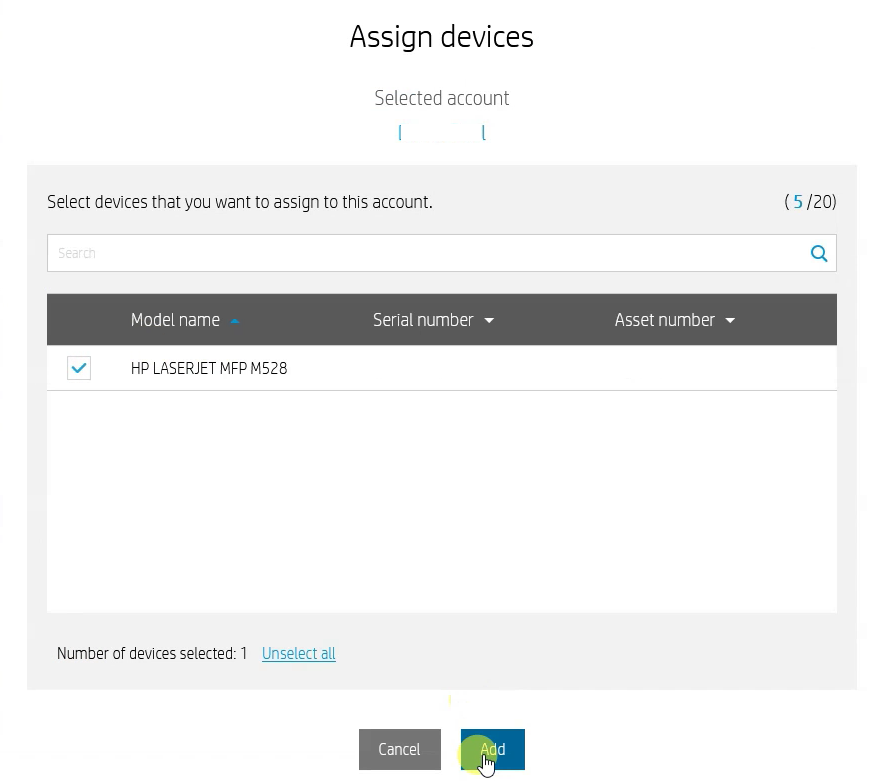
Click Assign Device to add your device to the selected account. In the pop-up window, select the device and click Add.
-
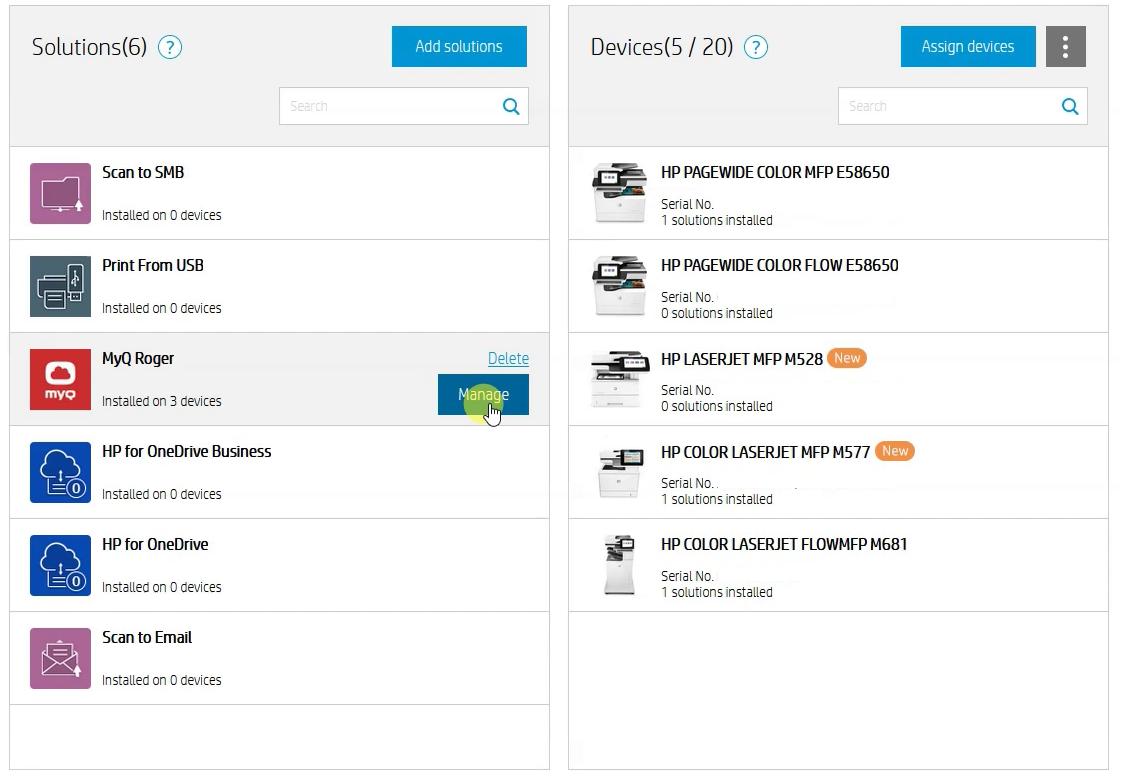
On the left column, under Solutions, select MyQ Roger, and click Manage.
-
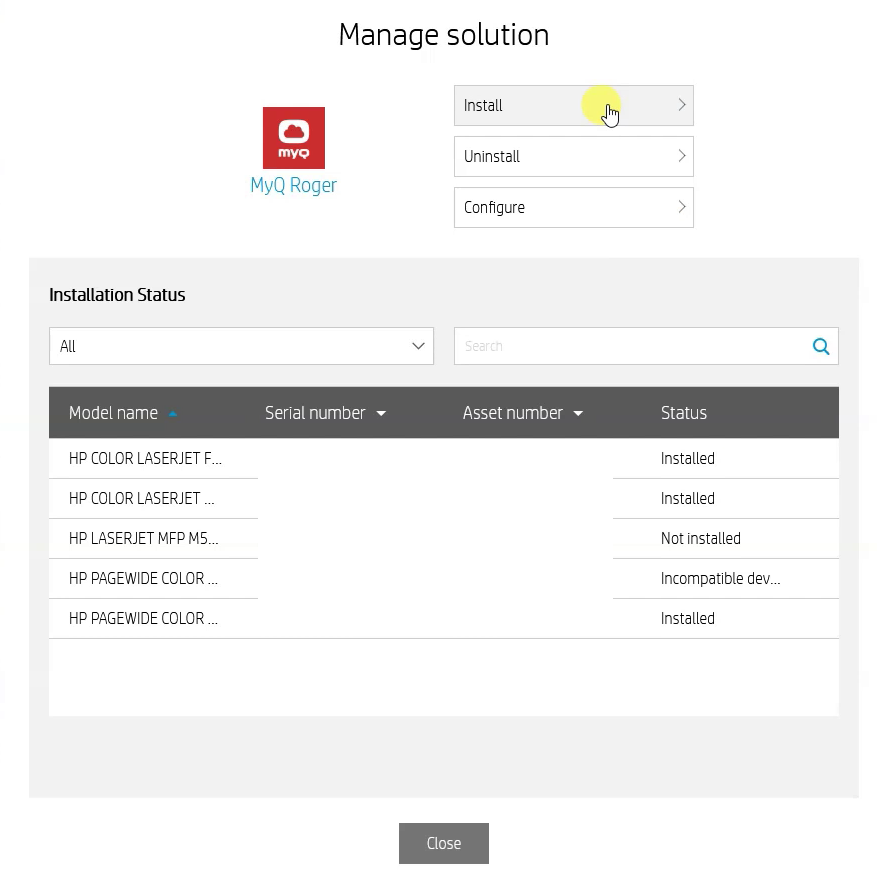
In the pop-up window, wait for the device list to load, and then click Install.
-
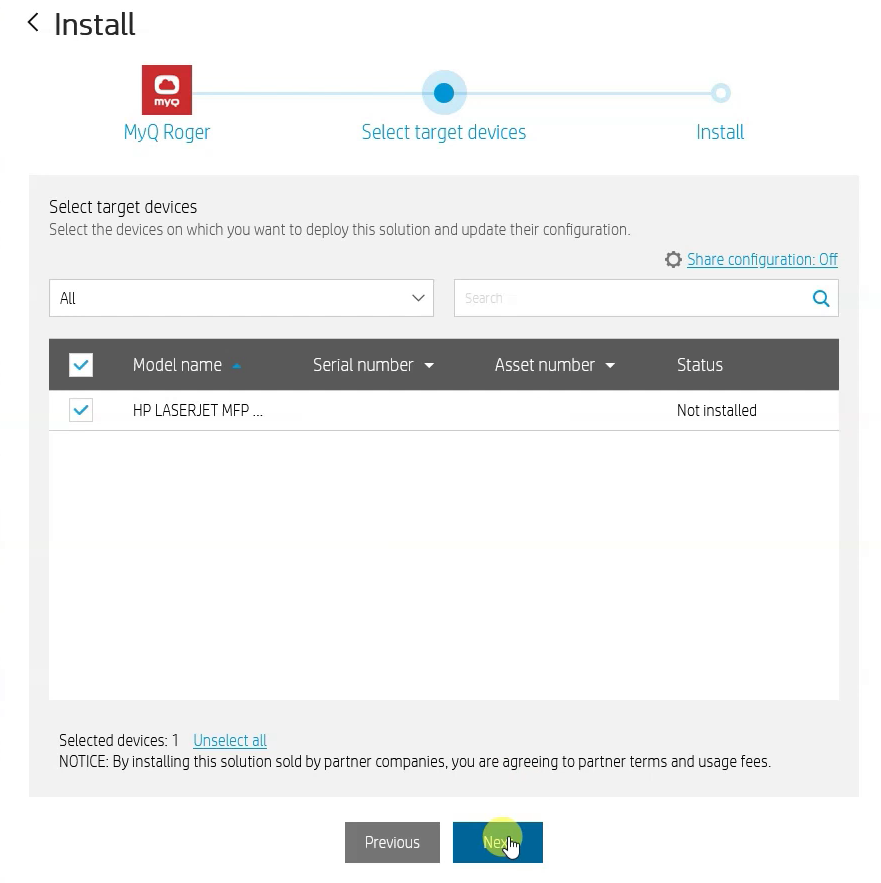
Select the device where you want to install MyQ Roger and click Next.
-
Select whether you want to install the application now (recommended) or schedule it for later (up to 72 hours) and click Install.
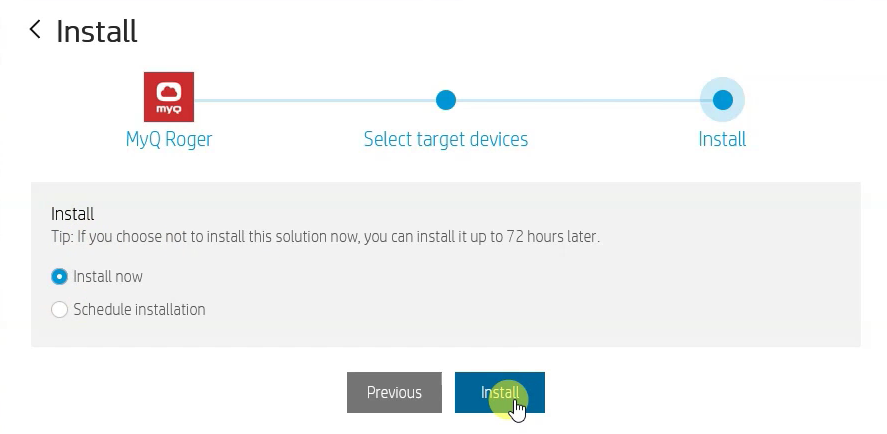
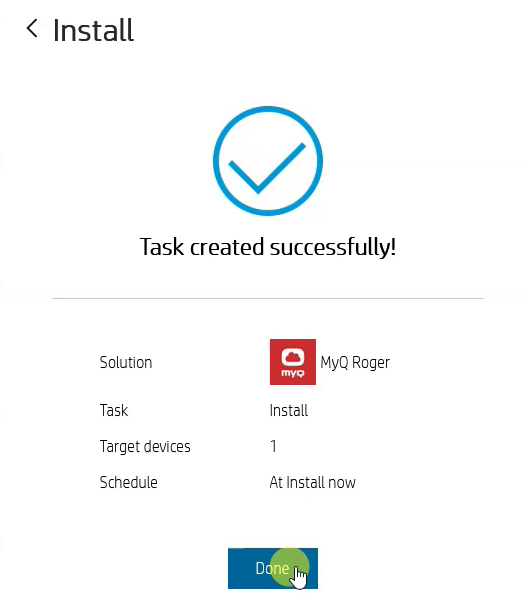
A new task is created, and the application is being installed in the background. -
Click Done.