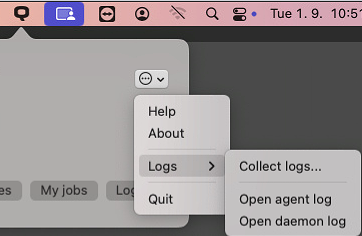
If you experience issues with MyQ Roger Client (MRC), first check that you have the latest version installed.
Click the MyQ icon in the menu bar (top right of your screen), then select About from the dropdown menu to view the installed version.
Next, try to exit and restart MRC, and then reboot the client computer.
If the issue persists, open a support case with us and include the client log files. You can download log files from your MyQ Roger tenant or collect them directly in MRC.
Download Client Logs from Web
To download MRC logs in the web UI:
-
Log in to your MyQ Roger tenant and go to Desktop Clients.
-
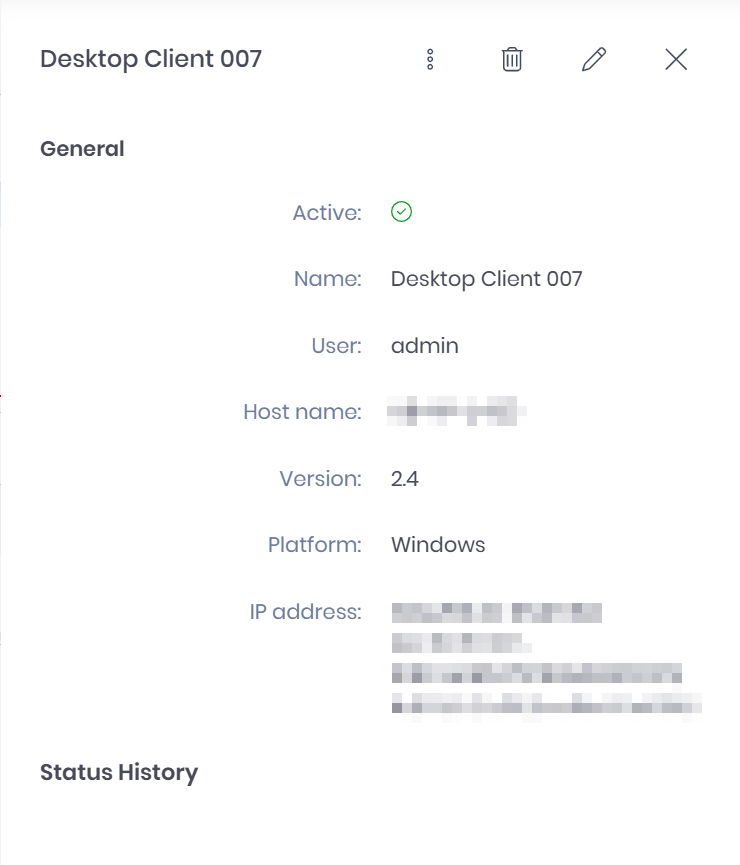
Click on a Desktop Client to open its details.
-
Click the three-dot menu and select Download Log.

Collect Client Logs
To collect log files directly in MRC, click the MyQ icon in the menu bar (top right of your screen), and go to … > Logs > Collect Logs. The contents of /Users/{user}/Library/Application Support/MyQ/MyQ Roger Client/logs/ and /Library/Application Support/MyQ/MyQ Roger Client/logs/ are saved to your computer as a ZIP files. This file contains agent logs, service logs and configuration files.