
Printing with the Roger Chrome Extension
-
Open the page you want to print.
-
Press Ctrl+P or Cmd+P on Mac.
-
Under destination, select Print with MyQ Roger, you may need to click See more to find it.
-
Set the print options.
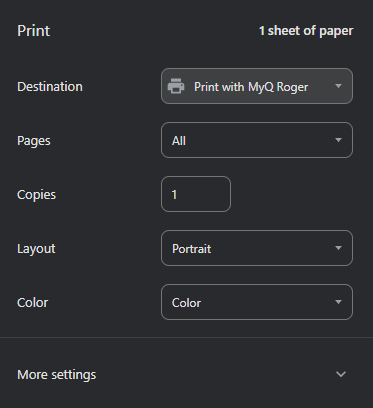
-
Click Print.
A notification confirms that the document was sent.
The document is then available in your MyQ Roger printable jobs.
Print settings
The following settings are transferred from Chrome to MyQ Roger:
-
Colour/B&W
-
Number of copies
-
Two-sided printing
-
Paper size
Supported paper sizes are A5, A4, A3, Letter, Legal, and Ledger.
Long-edge and short-edge two-sided printing are not distinguished.
Page orientation is not transferred to MyQ Roger.
Page range, scale, margins, and headers are applied by Chrome when the PDF is created.
Find your printed documents
Documents printed with the MyQ Roger Chrome extension are saved in MyQ Roger / Print in your Google Drive. Files are named using the page title, date, and time. For example: Quarterly report_2026-09-17_14-30-05.pdf
You can open the file in Google Drive after printing.