
Requirements
-
Google Chrome or ChromeOS.
-
A MyQ Roger account with Google Drive connected.
Install the Extension
-
Install MyQ Roger from the Chrome Web Store.
-
Click the extension icon in the Chrome toolbar.
-
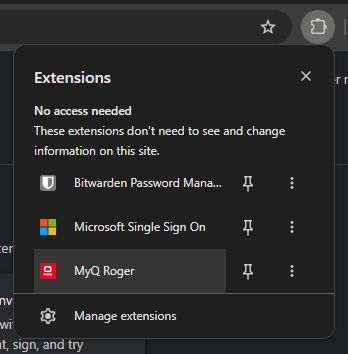
If you do not see the extension, click the puzzle piece icon and pin MyQ Roger.
-
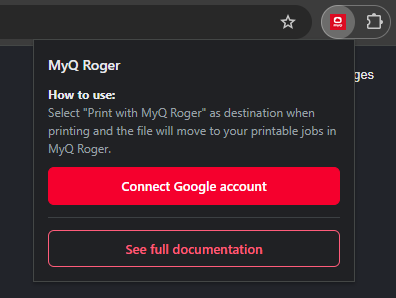
Click Connect Google account.
-
Approve the access requested by Google.
The popup shows the connected Google account.
The Google account signed in to Chrome must be the same Google account connected in MyQ Roger. The extension saves documents to the account signed in to Chrome, while MyQ Roger reads the account connected in MyQ Roger. If the accounts are different, printing succeeds but the document does not appear in your MyQ Roger jobs.
The extension shows a warning in the popup when it cannot find MyQ Roger on the connected account. If you see the warning, connect the same Google account in MyQ Roger that you use in Chrome.
Disconnect the Extension
-
Open the extension popup.
-
Click the disconnect button next to your account name.
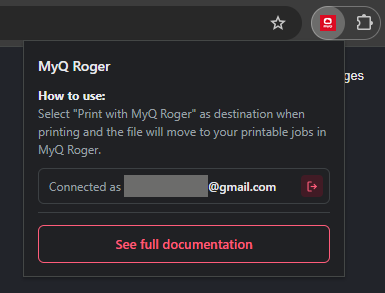
Disconnecting revokes the extension's access to your Google Drive and clears the record of the last document sent.
You can connect the account again at any time.