
When you contact MyQ Support to investigate any issues with MyQ Roger, you should specify:
-
Your MyQ Roger Tenant name. The Tenant's name can be found:
-
In the MyQ Roger mobile app, go to More > Profile > Tenant name.
-
In MyQ Roger Client (MRC), it's visible in the top center.
-
In the terminal, tap the MyQ Roger logo on the login screen.
-
-
The username (email) where the issue occurred.
-
The exact time of the issue.
-
A detailed description of the issue.
-
Logs of any MyQ Roger products you currently use.
MyQ Roger Client Logs
The default location of the MyQ Roger Client logs is in the following two directories:
-
C:\ProgramData\MyQ\Desktop Client\logs -
%userprofile%\AppData\Local\MyQ\Desktop Client\logs -
Store all the files and folders from both directories in a .zip file and attach it to your helpdesk case.
Roger Web UI
-
Login to the Roger Web UI as a user with an admin role (permission Printers / Manage printers is required).
-
Open Printers and find the printer you wish to download the logs from.
-
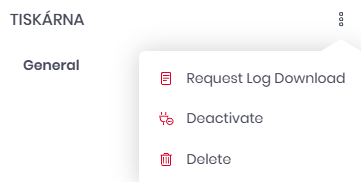
Open its details and in the three-dot menu select Request Log Download.
-
When the log download is finished, the file itself is stored on the Roger server.
-
Download it in the same three-dot menu by selecting Download Log.
-
-
The file is encrypted and cannot be opened directly. Please provide it to MyQ Support with your ticket.