
Remote management allows you to manage MyQ Roger Client (MRC) installations and configurations directly from the MyQ Roger web UI. You can update, uninstall, or delete clients without requiring physical access to user workstations. Operations can be performed on individual clients or across multiple clients at once.
Requirements
-
MyQ Roger Server 2.19+
-
MyQ Roger Client 2.4+
Available Actions
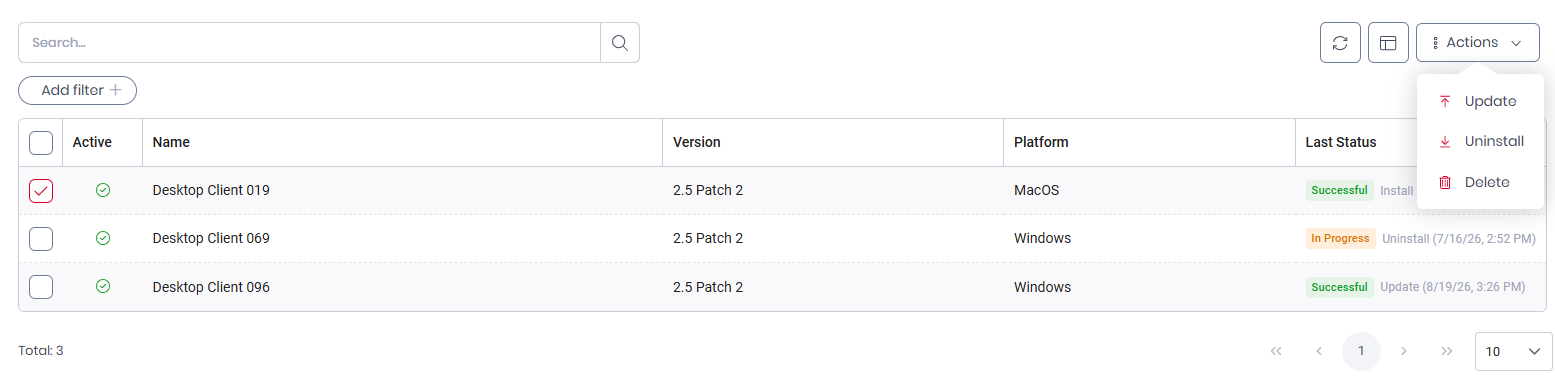
From the Desktop Clients page, you can perform the following actions on registered clients:
-
Update
Install the default version of MRC to the client, replacing the current version. You set the default installer in Configure Desktop Client Installers. -
Uninstall
Remove MRC from the client workstation. -
Delete
Remove the client registration from the server. This leaves MRC installed on the client workstation.
The Update and Uninstall actions are not supported for client versions older than 2.4.
Upgrading Clients Remotely
The Update action pushes your configured default installer to your client workstations. For details about configuring and setting a default installer, see Configure Desktop Client Installers.
Initiate a Remote Update
-
Go to Supervision > Desktop Clients.
-
Select one or more clients from the list.
-
Click Actions and select Update.
When the update is complete, the client opens into the same user session as before the update, if the user was logged in.
Monitoring Update Status
After initiating an update, you can monitor progress on the Desktop Clients page. Each client reports one of the following states:
-
Started
Update scheduled; client is waiting for the configured delay before starting. -
Running
Client is downloading and installing the update package. -
Completed
Update finished successfully. -
Failed
Update failed; check error details for troubleshooting.
Troubleshooting Failed Updates
If an update fails, the client reports error details to the server. You can view these details on the Desktop Clients page. For additional troubleshooting, update log files are stored on the client workstation at:
C:\ProgramData\MyQ\MyQ Roger Client\MrcUpdates
Uninstalling Clients
To remotely uninstall MRC from one or more workstations:
-
Go to Supervision > Desktop Clients.
-
Select one or more clients from the list.
-
Click Actions and select Uninstall.
The client software is removed from the selected workstations.
Deleting Client Registrations
Deleting client registrations to clean up your clients list – for example, to remove entries for employees who no longer work at your organization.
To delete client registrations:
-
Go to Supervision > Desktop Clients.
-
Select one or more clients from the list.
-
Click Actions and select Delete.
This removes client registrations from Desktop Client table on the server. The MRC application remains installed on the workstations, and the user stays logged in and connected to the tenant. Once the user reauthenticates or restarts the computer, the client is automatically re-added to the Desktop Clients table.
Roger removes inactive clients from the Desktop Clients table after 30 days. If a client reconnects to the server, it is re-added to the Desktop Client table automatically.