To deploy MyQ Roger Client for Windows with Intune, follow these steps:
-
Create a Desktop Client configuration in your Roger server in Supervision>Desktop Clients>Download. Download and unzip the file.
-
Prepare a source folder. Create a folder on your computer (e.g.,
C:\IntuneSource\MyQRoger) and place the following files inside it:-
The MSI Installer: The
MyQ Roger Client-setup.msifile. -
The Configuration File: The
MyQ Roger Client-setup.cfgfile. This.cfgfile is critical. It must contain your specific parameters likeTENANCYNAMEandREGIONID. Without it, the installation script will fail.
-
-
Wrap the Application. Use the Microsoft Win32 Content Prep Tool to create the
.intunewinpackage. https://learn.microsoft.com/en-us/mem/intune/apps/apps-win32-prepare-
Run
IntuneWinAppUtil.exe. -
Source folder:
C:\IntuneSource\MyQRoger. -
Setup file:
MyQ Roger Client-setup.msi. -
Output folder: Choose a folder for the final
.intunewinfile.
-
-
Once
.intunewinfile is ready, go to Intune > Apps > Windows apps and click Add.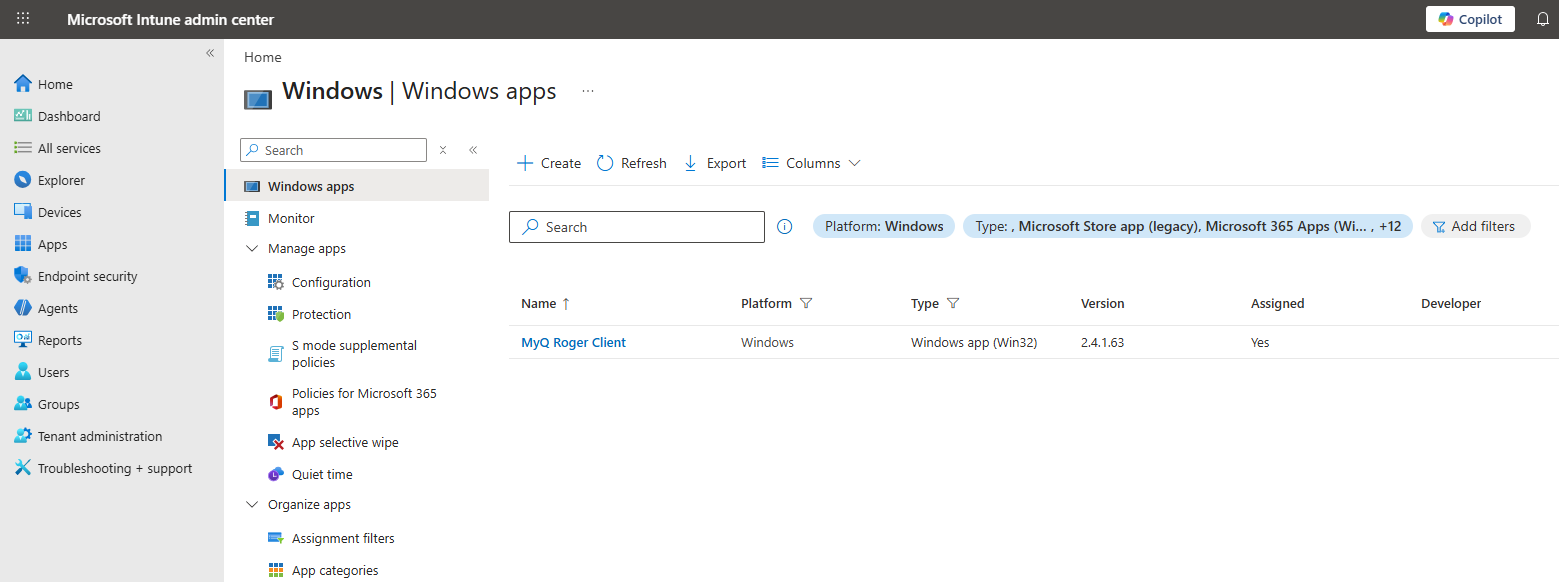
-
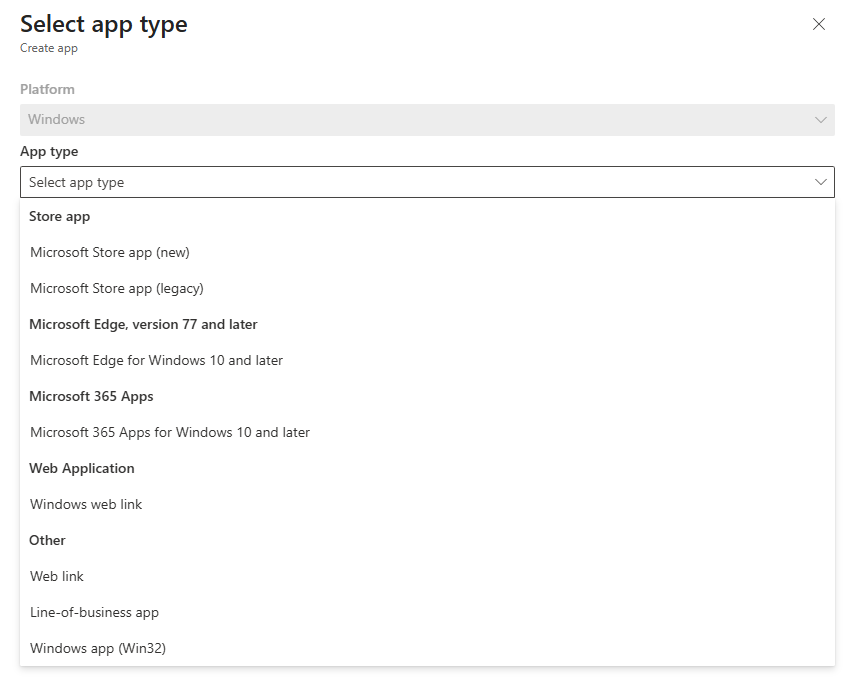
Choose Windows app (Win32), select a publisher, and press Select at the bottom.
-
Select the
.intunewinfile you created earlier.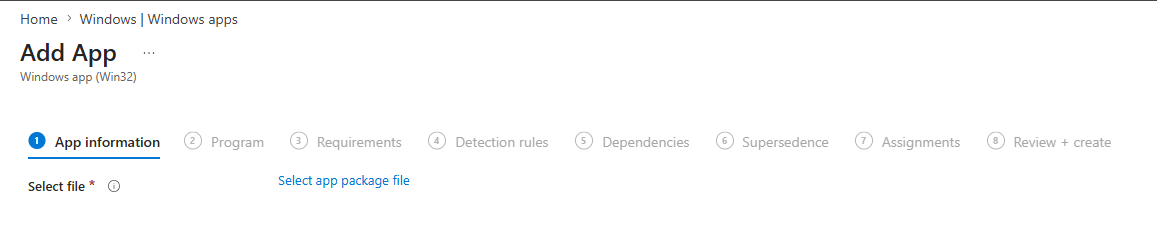
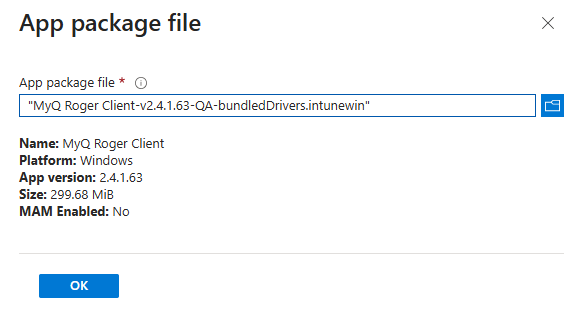
-
Fill in information about the app and click Next.
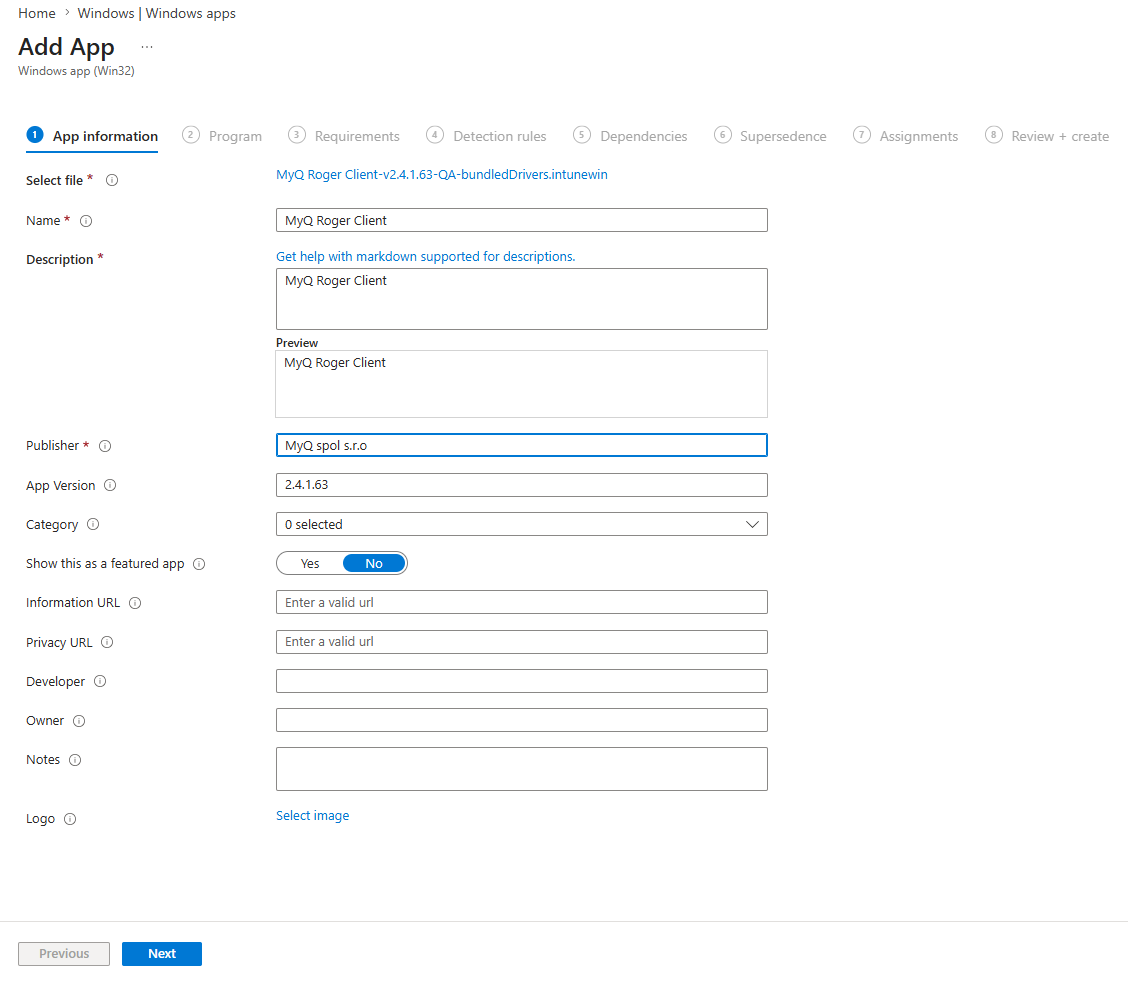
-
All installation commands have been configured automatically by Intune, there is no need to edit them. Click Next.
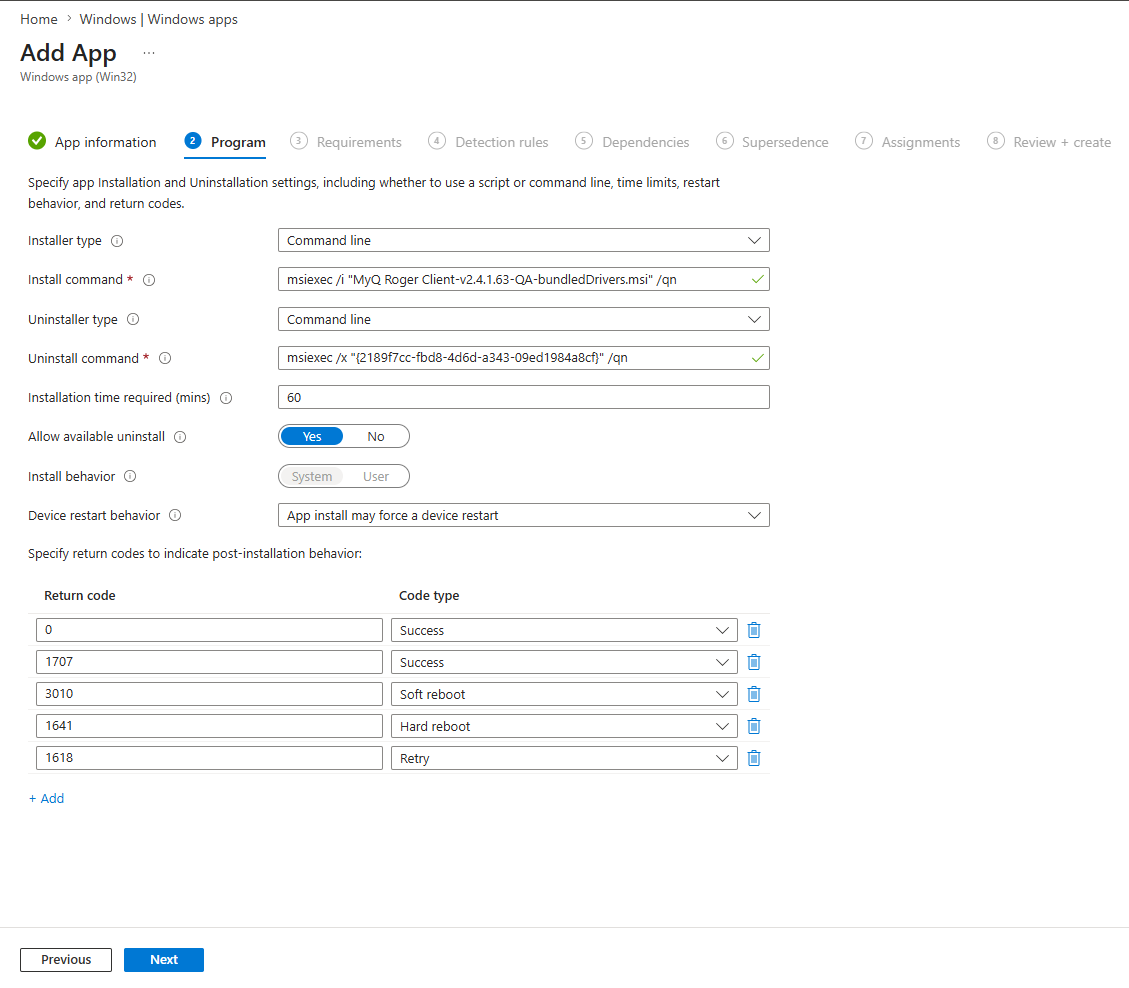
-
Select the required system architecture and minimum operating system.
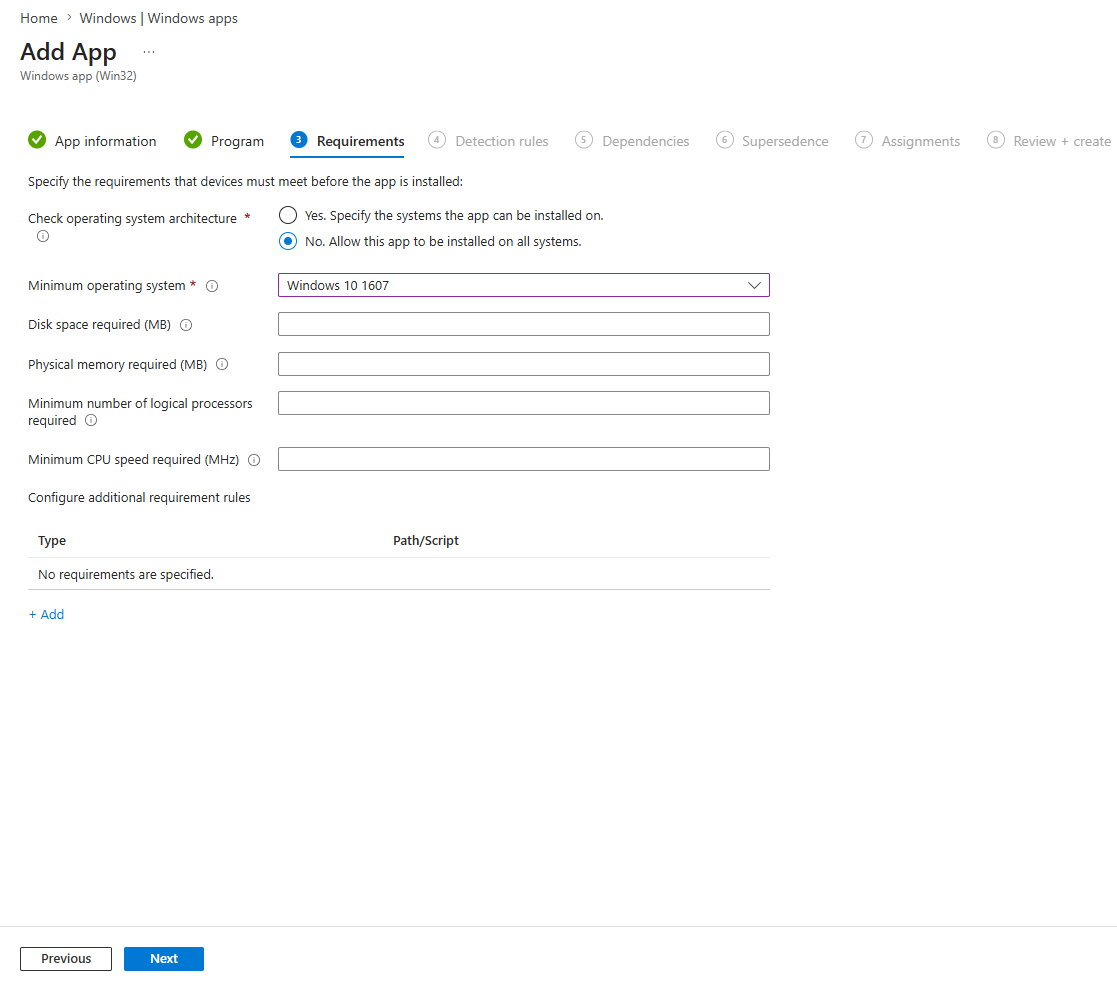
-
Select Manually configure detection rules and specify Rule type as MSI, click OK.
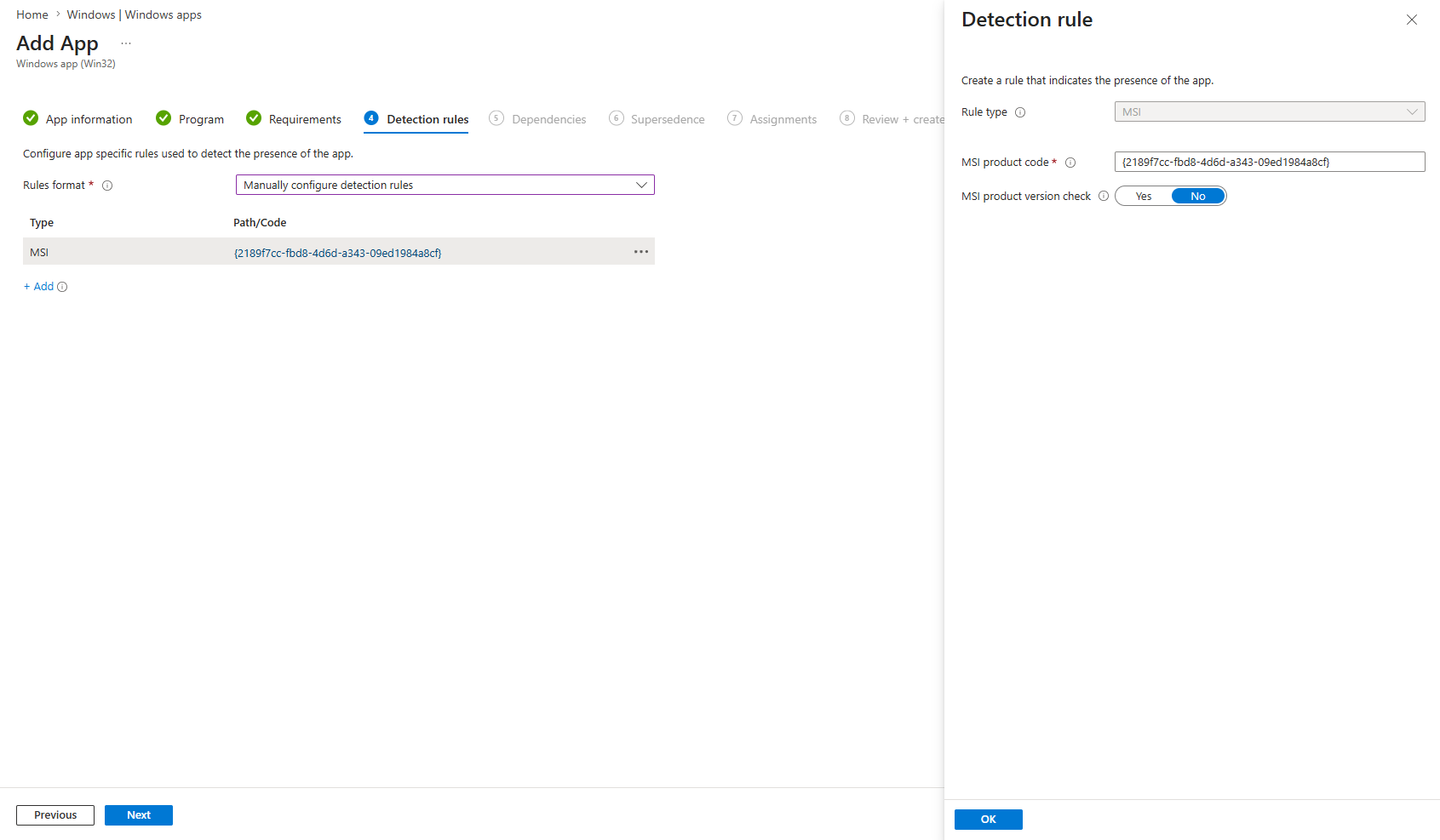
You can skip the Dependencies and Supersedence sections.
-
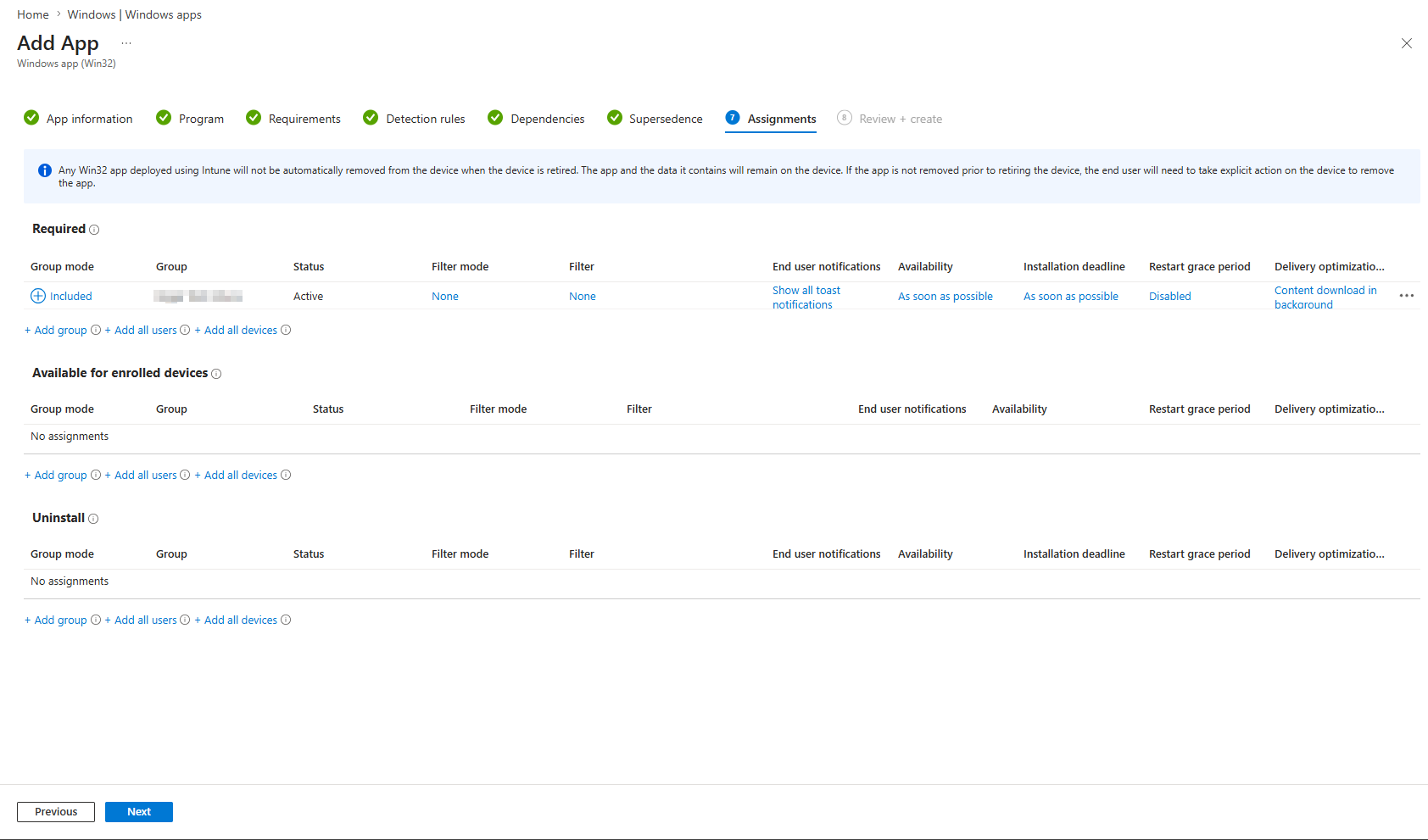
On the Assignments page, choose the users, user groups, or devices for which the application will be installed or set to install automatically.
-
Review and click Create.
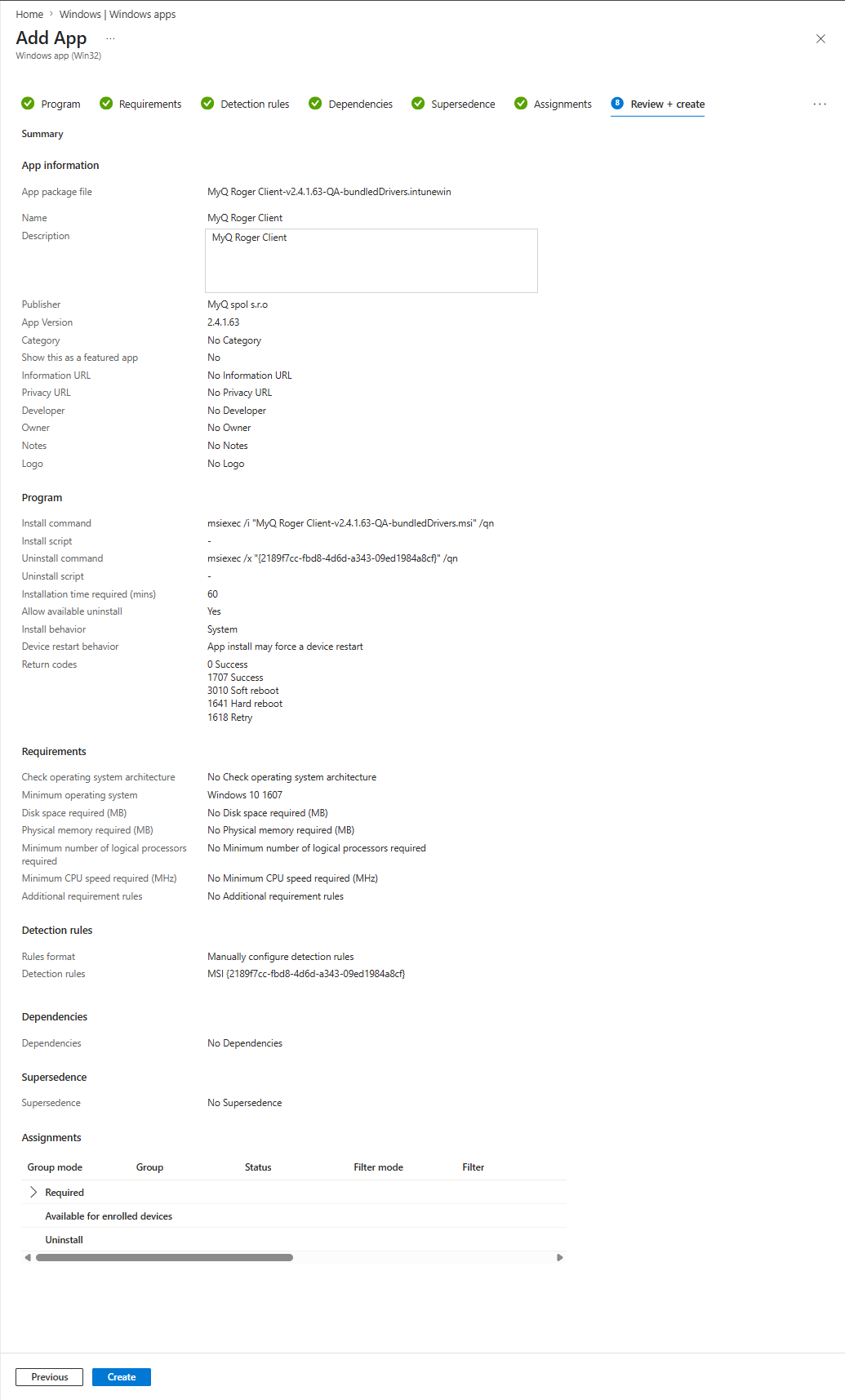
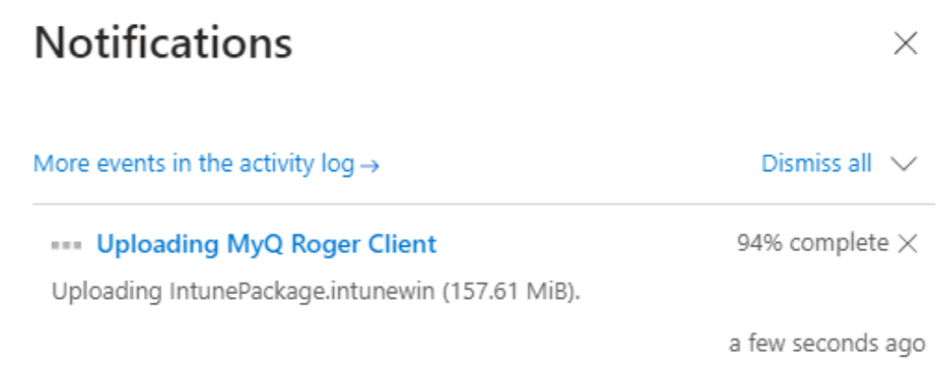
Once uploaded, the app is created in Intune and will take some time to install on selected devices/users/groups.