If you experience issues with MyQ Roger Client (MRC), first check that you have the latest version installed.
Click the MyQ icon in the menu bar (top right of your screen), then select About from the dropdown menu.
Next, try to exit and restart MRC, and then reboot the client computer.
Collect Client Logs
If the issue persists and you decide to open a Support case, collect logs to include in your support ticket.
Click the MyQ icon in the menu bar (top right of your screen), and go to … > Logs > Collect Logs. Save the log ZIP file to your computer.
Request Client Logs from Web App
To collect Log Downloads from MRC:
-
Navigate in the Roger Web App to Desktop Clients.
-
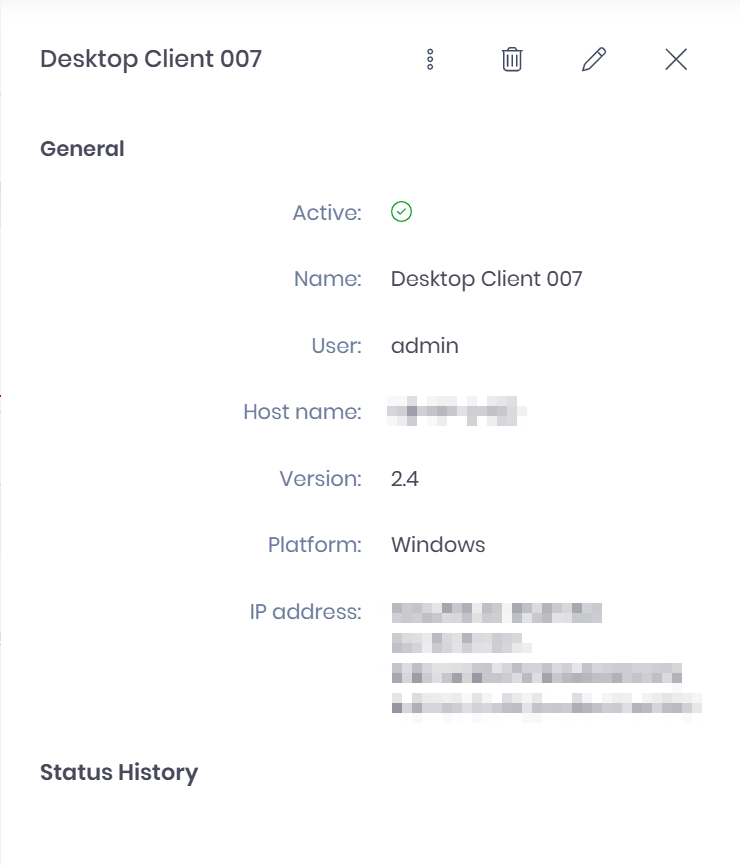
Click on a Desktop Client to open its details.
-
Use the three-dot menu and select Download Log.