
Obtain Logs
When you contact MyQ Support to investigate any issues with MyQ Roger, you should specify:
Your MyQ Roger Tenant name. The Tenant's name can be found:
In the MyQ Roger mobile app, go to More > Profile > Tenant name.
In MyQ Roger Client (MRC), it's visible in the top center.
In the terminal, tap the MyQ Roger logo on the login screen.
The username (email) where the issue occurred.
The exact time of the issue.
A detailed description of the issue.
Logs of any MyQ Roger products you currently use.
MyQ Roger Client Logs
The default location of the MyQ Roger Client logs is in the following two directories:
C:\ProgramData\MyQ\Desktop Client\logs%userprofile%\AppData\Local\MyQ\Desktop Client\logsStore all the files and folders from both directories in a .zip file and attach it to your helpdesk case.
Logs from Server Web UI
Another option is to download logs directly from the server web UI.
Log into Roger web UI with rights for managing printers, open Printers.
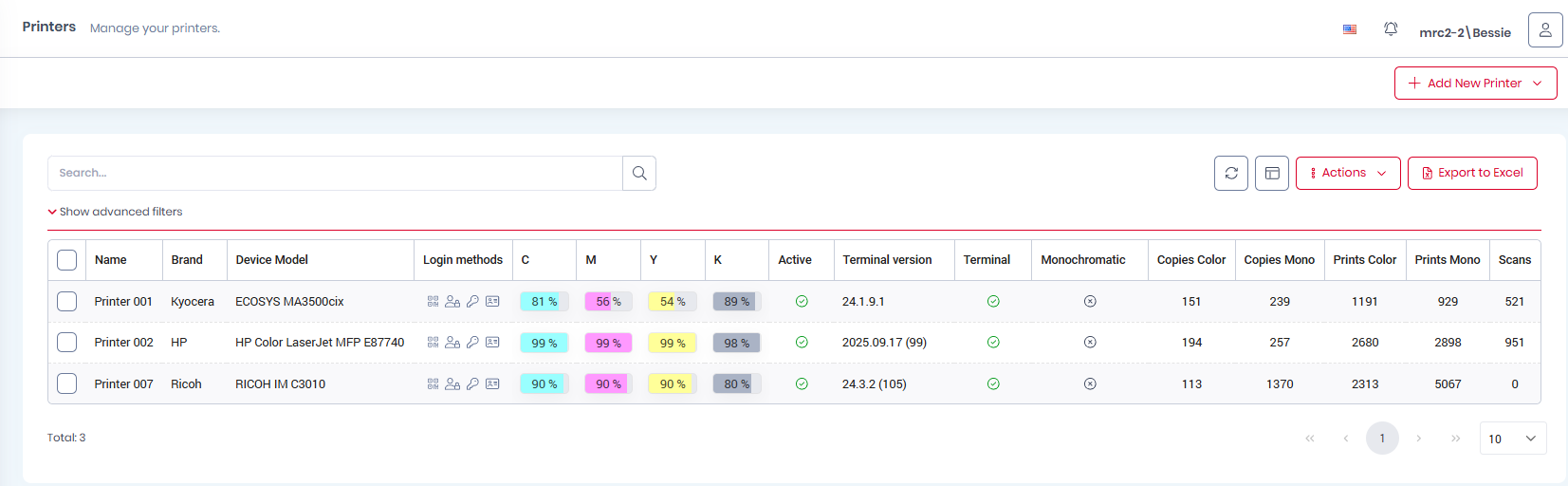
Click on the relevant device to view its details and from the action menu (three-dots) select Request Log Download.
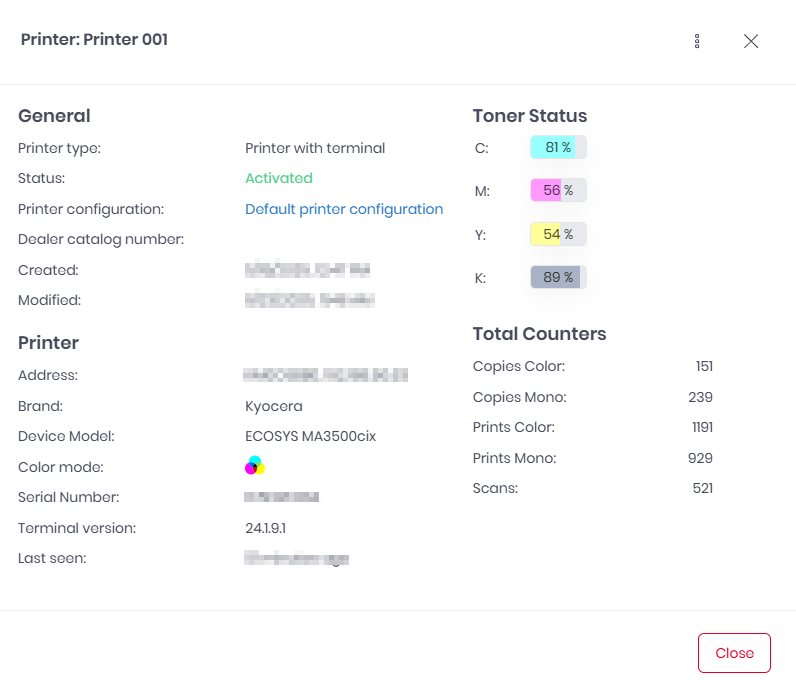
Once the log is downloaded, from the same action menu select Download Log.