
Admin Menu
It is possible to log in to the device’s Admin Menu from the login screen when the device is registered to the tenant.
To access the Admin Menu, enter the Admin Mode PIN in the password field of the login page, leaving the username field empty. Press the MyQ logo for 5 seconds.

For newly created tenants, the Admin Mode PIN is generated randomly and after connecting the device to the tenant. To view the Admin Mode PIN in the MyQ Roger Server, go to Administration > Printer Configurations and select a printer configuration. To modify the PIN, edit the printer configuration.
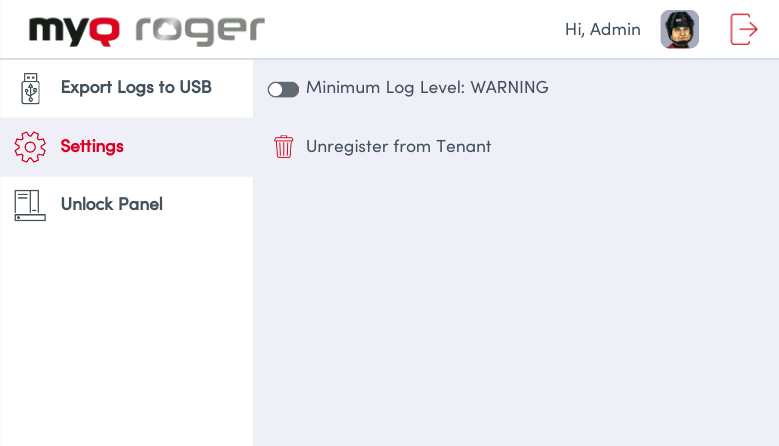
The available actions in the Admin Menu of the MyQ Roger terminal for Kyocera are:
Export Logs to USB
Save a ZIP file of the printer logs to the root directory of a USB drive.Settings
Minimum Log Level
Collect logs of level WARNING and above. Use this to save storage space by reducing log size.Unregister from Tenant
The device is unregistered from the tenant; all users and local spooled jobs are deleted from the device; the screen for registration of the device to the tenant is displayed after logging out of the Admin Menu.
Unlock Panel
Permits managing the printer settings or update/uninstall the MyQ Roger terminal for Kyocera.

The Admin Menu is not available in Offline Mode.