Deploy with Intune
To deploy MyQ Roger Client for Windows with Intune, follow these steps:
Prepare the Intune file via this guide - https://learn.microsoft.com/en-us/mem/intune/apps/apps-win32-prepare
Download and run the .msi file from MyQ to get the
.intunefile to be later uploaded to Intune.Once
.intunewinfile is ready, go to Intune > Apps > Windows apps and click Add.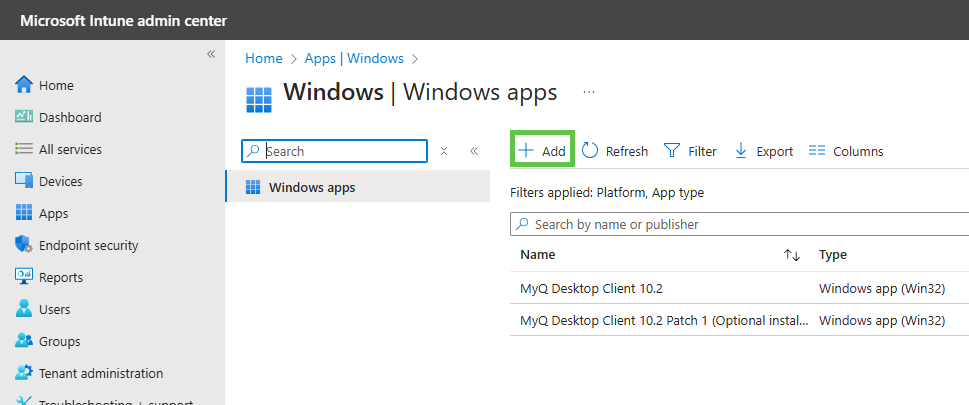
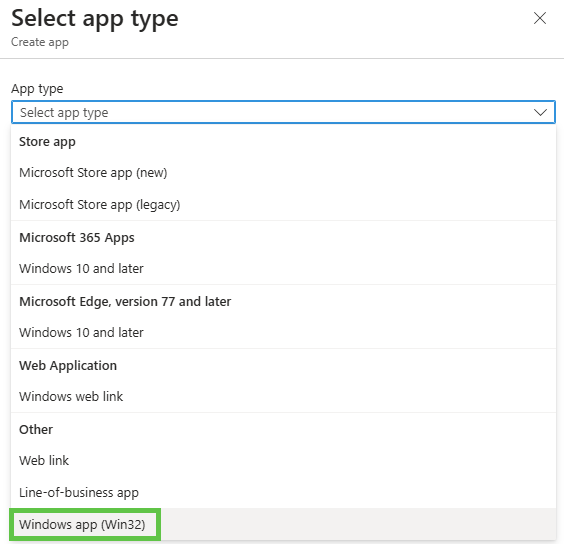
Choose Windows app (Win32) and press Select at the bottom.
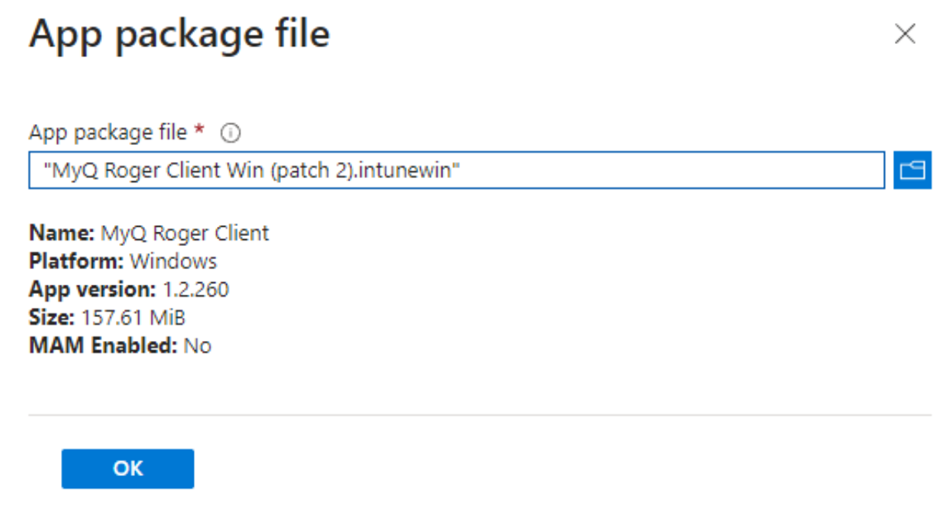
Select the
.intunewinfile you created earlier.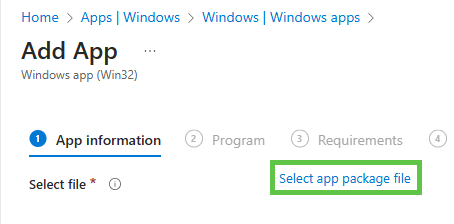
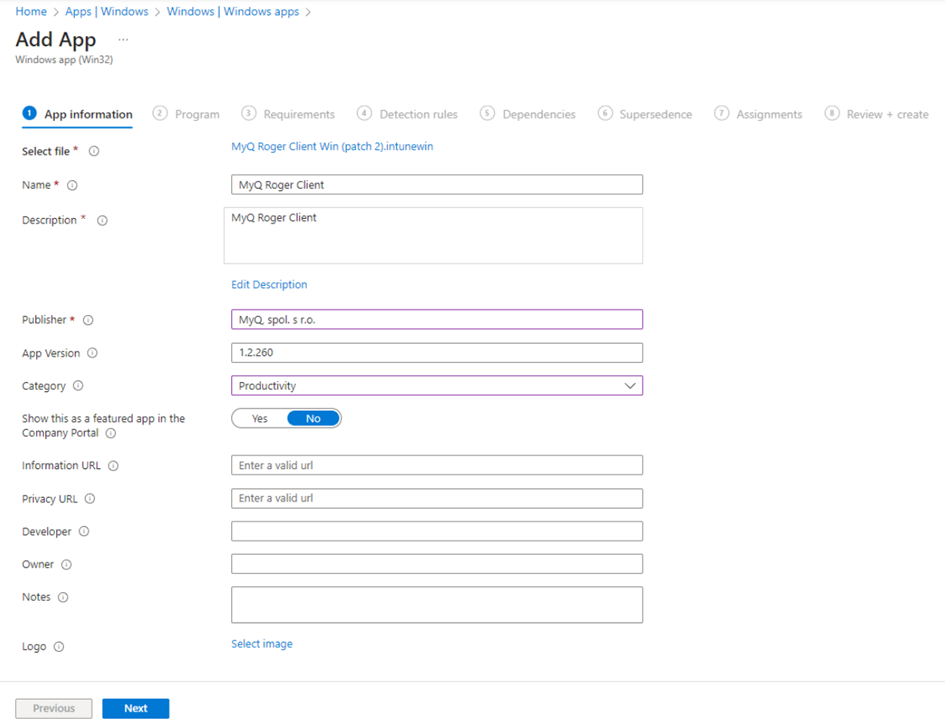
Fill in information about the app and click Next.
You can edit the install command using the commands listed in Installation. For example, add
TENANCYNAME="tenancyname"if you want to install MRC for a specific tenant. Click Next once you are finished.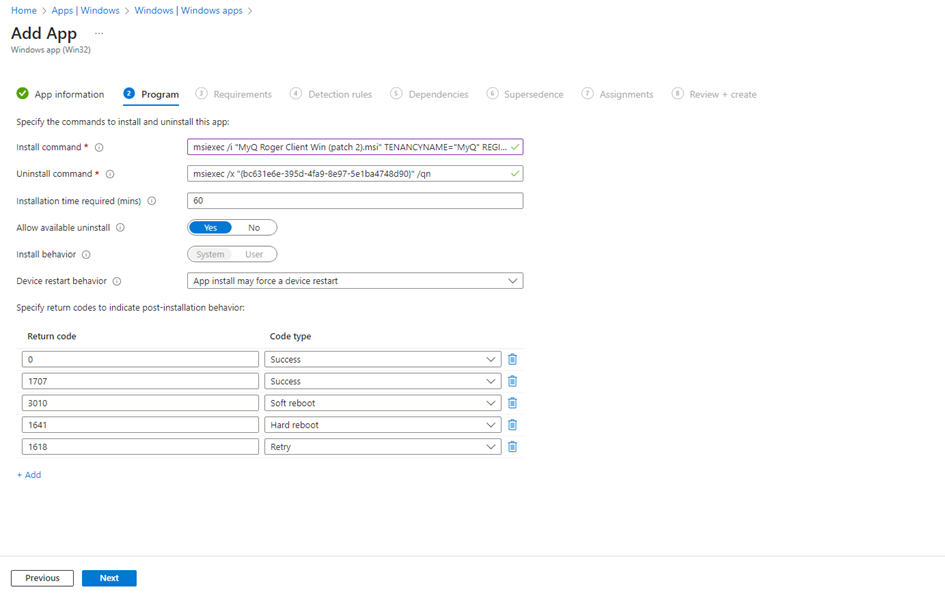
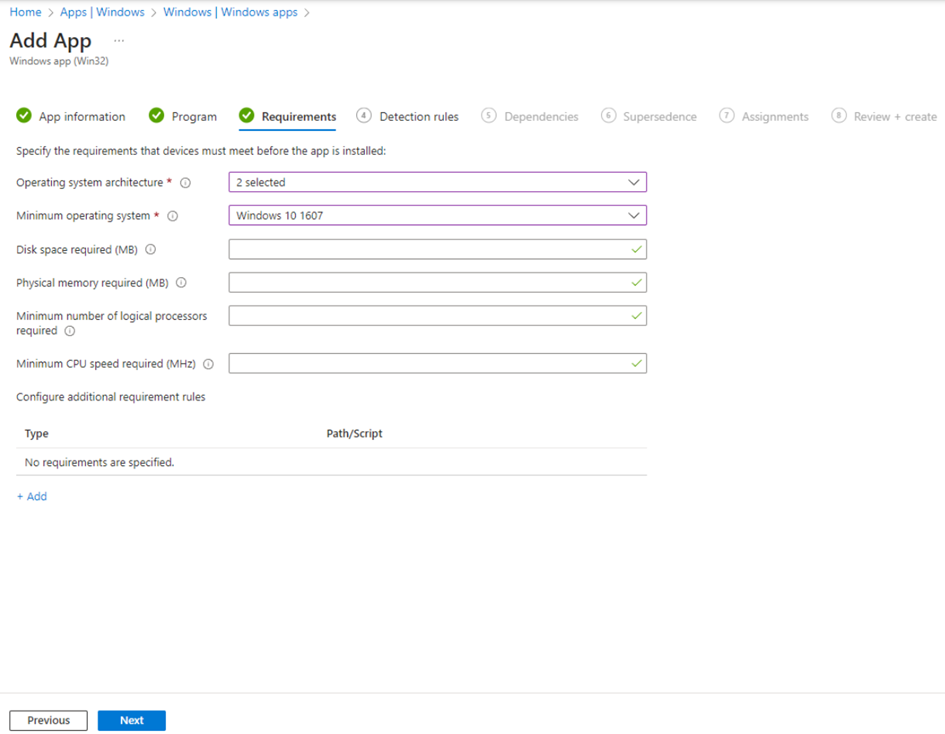
Select the required system architecture and minimum operating system.
Set up detection rules.
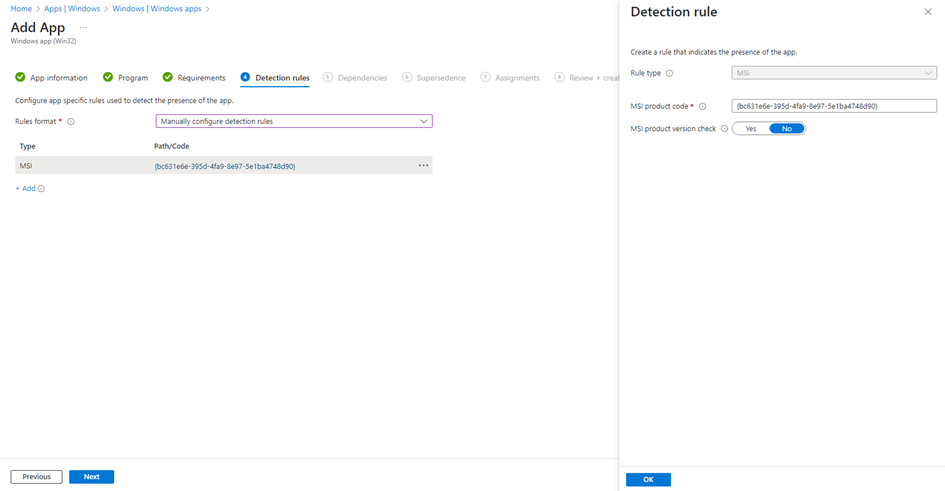

You can skip the Dependencies and Supersedence sections.
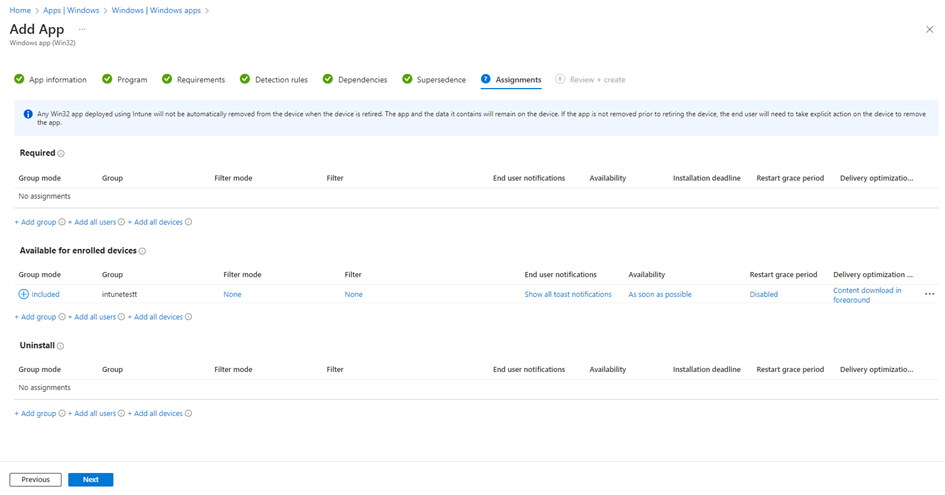
On the Assignments page, choose the users, user groups, or devices for which the application will be installed or set to install automatically.
Review and click Create.
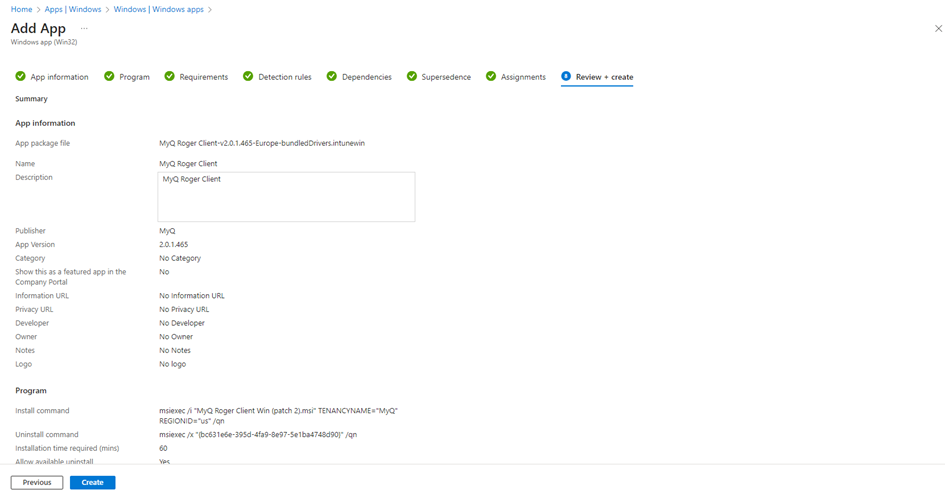
Once uploaded, the app is created in Intune and will take some time to install on selected devices/users/groups.